> ## Documentation Index
> Fetch the complete documentation index at: https://docs.kinemation.xyz/llms.txt
> Use this file to discover all available pages before exploring further.
# ◻️FPS Offset
> Documentation for ◻️FPS Offset.
## Overview
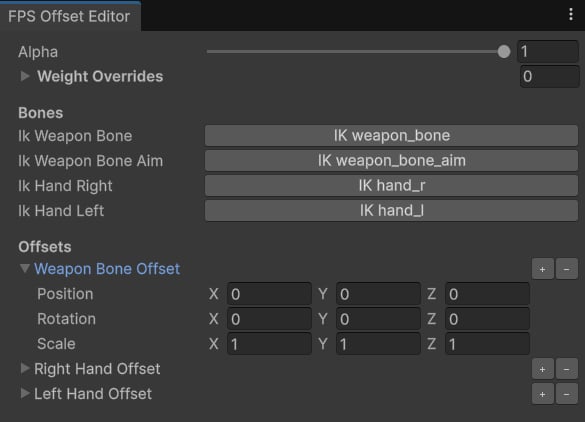
This modifier lets you apply offsets to the weapon and hands IK targets:
 #### Bones
* Ik Weapon Bone is set to IK weapon\_bone, and it represents the weapon animated pose.
* Ik Weapon Bone Aim represents the weapon default idle pose, which is used for aiming.
* Ik Hand Right/Left is an IK bone target for the right/left hand.
#### Offsets
* **Weapon Bone Offset** is a rotation and translation offset for the Ik Weapon Bone in component space.
* **Right**/**Left Hand Offset** is a rotation and translation offset for the Ik Right/Left Hand relative to the weapon.
## Use-cases
This modifier is generally used to adjust the weapon pose in first-person view. It's recommended to bind offset values from a scriptable objects, character controller or a weapon:
#### Bones
* Ik Weapon Bone is set to IK weapon\_bone, and it represents the weapon animated pose.
* Ik Weapon Bone Aim represents the weapon default idle pose, which is used for aiming.
* Ik Hand Right/Left is an IK bone target for the right/left hand.
#### Offsets
* **Weapon Bone Offset** is a rotation and translation offset for the Ik Weapon Bone in component space.
* **Right**/**Left Hand Offset** is a rotation and translation offset for the Ik Right/Left Hand relative to the weapon.
## Use-cases
This modifier is generally used to adjust the weapon pose in first-person view. It's recommended to bind offset values from a scriptable objects, character controller or a weapon:
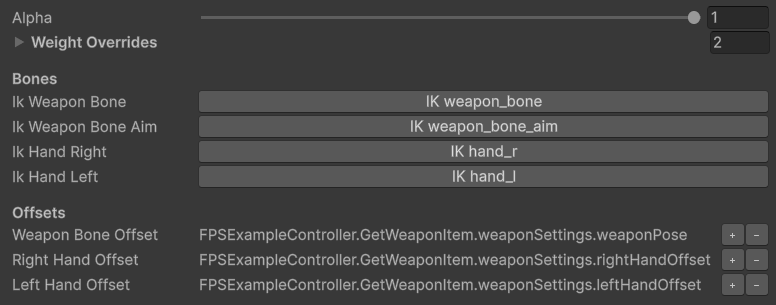 In the FPS Addon Demo, weapon animation data is stored in a scriptable object. This **FPS Offset** modifier links that data asset with the animation system.
**FPS Offset** is usually placed after the [FPS Copy Bones](/cas/fps/modifiers/fps-copy-bones), additional Copy Bone, and the Attach Hand modifiers:
In the FPS Addon Demo, weapon animation data is stored in a scriptable object. This **FPS Offset** modifier links that data asset with the animation system.
**FPS Offset** is usually placed after the [FPS Copy Bones](/cas/fps/modifiers/fps-copy-bones), additional Copy Bone, and the Attach Hand modifiers:
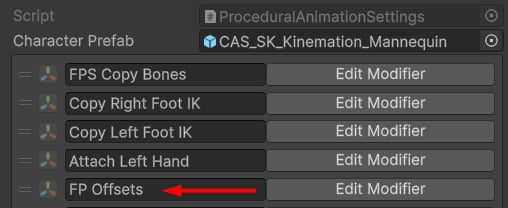 It's also possible to add multiple FPS Offsets to the same Procedural Animation Settings asset:
 In this example, there're 3 offset modifiers used for different gameplay situations. To make these modifiers active only in certain situations, use the Weight Overrides feature:
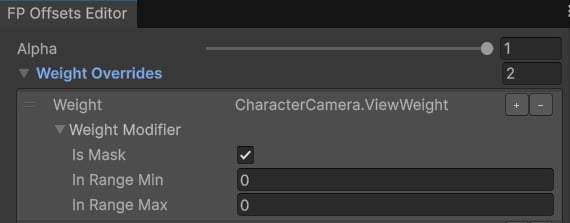 This override will activate the modifier only when the player is in first-person view.