> ## Documentation Index
> Fetch the complete documentation index at: https://docs.kinemation.xyz/llms.txt
> Use this file to discover all available pages before exploring further.
# ⚡How to set up procedural animation
> In this tutorial we will set up procedural animation in CAS.
## Create Procedural Animation Settings
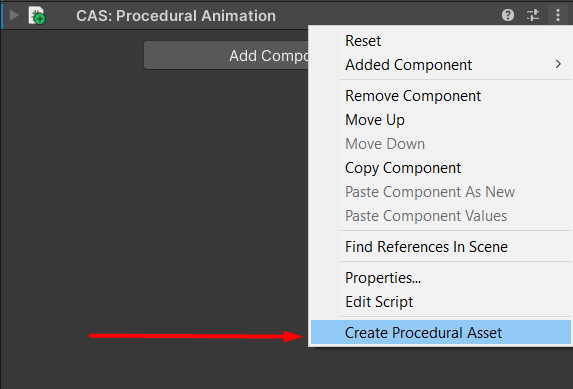
On the character prefab, open **Procedural Animation** (three dots) and choose **Create Procedural Asset**.
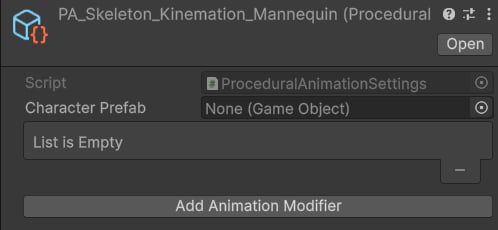
 **Procedural Animation Settings** list the Animation Modifiers applied to the skeleton at runtime:
 ## Animation Modifiers
Assign **Character Prefab** — the main player prefab used in-game. If you don’t have one yet, drag the scene character into the current folder to create a prefab.
**Tip:** This prefab’s structure is used to bind gameplay data to Animation Modifiers.
After assigning the prefab, add Animation Modifiers:
## Animation Modifiers
Assign **Character Prefab** — the main player prefab used in-game. If you don’t have one yet, drag the scene character into the current folder to create a prefab.
**Tip:** This prefab’s structure is used to bind gameplay data to Animation Modifiers.
After assigning the prefab, add Animation Modifiers:
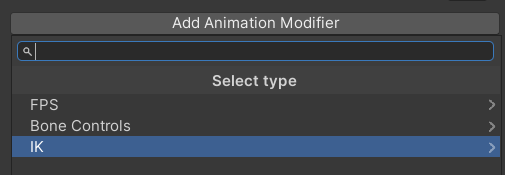 You can add multiple modifiers of the same type (e.g., several **Modify Bone** or **Two Bone IK**). Choose any combination you need.
**Note**: For details, see [Animation Modifiers](/cas/modifiers/overview).
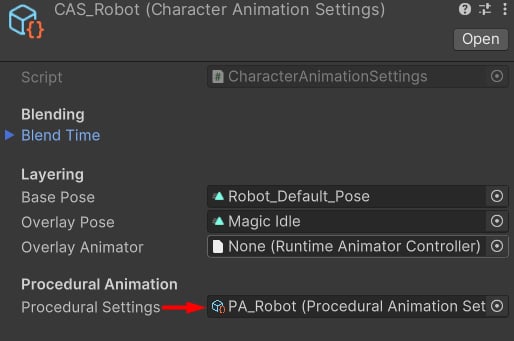
Finally, assign your **Procedural Animation Settings** in the **Character Animation Settings**:
You can add multiple modifiers of the same type (e.g., several **Modify Bone** or **Two Bone IK**). Choose any combination you need.
**Note**: For details, see [Animation Modifiers](/cas/modifiers/overview).
Finally, assign your **Procedural Animation Settings** in the **Character Animation Settings**: