> ## Documentation Index
> Fetch the complete documentation index at: https://docs.kinemation.xyz/llms.txt
> Use this file to discover all available pages before exploring further.
# ◻️Step Modifier
> Documentation for ◻️Step Modifier.
## Overview
**Step Modifier** creates procedural steps to avoid feet sliding when changing animation states (e.g., standing to crouching).
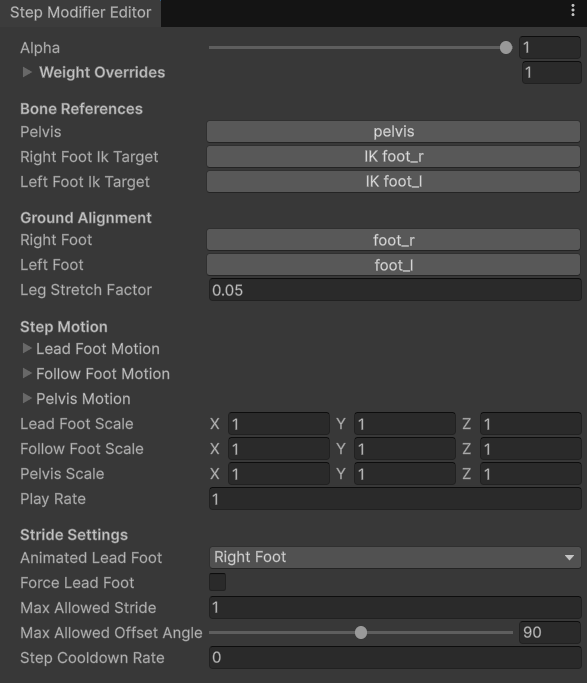 #### Bone References
> Here you will find bone references to assign.
* **Pelvis** — pelvis or hip bone.
* **Right** and **Left Foot IK Target** — IK bone for the right or left foot. It's usually set to IK foot\_r or IK foot\_l.
#### Ground Alignment
> Here you will find settings for snapping feet to the ground.
* **Right Foot** — right foot bone (not an IK).
* **Left Foot** — left foot bone (not an IK).
* **Leg Stretch Factor** — fine-tunes how aggressively the system detects and corrects leg stretching. Higher values increase the likelihood that a leg will be classified as “stretched” and have its length adjusted accordingly.
#### Step Motion
> Here you will find animation curves for feet and pelvis.
* **Lead Foot Motion** — position animation for the leading foot (the one making a step first).
* **Follow Foot Motion** — position animation for the following foot (the one making a step after the leading one).
* **Pelvis Motion** — position animation for pelvis.
**Note**: The Animation Curve values must at end zero for all motions.
* **Lead**, **Follow Foot** and **Pelvis Scale** — values that will scale each motion per-axis. For example, the X component will scale the X axis.
* **Play Rate** — speed multiplier for this step motion.
#### Stride Settings
> Here you will properties that define the procedural step.
* **Animated Lead Foot** — defines the leading foot for this step. A leading foot is the one making a step first.
* **Force Lead Foot** — controls if the step must always start with a leading foot. If disabled, the leading foot will be determined based on the velocity vector.
* **Max Allowed Strength** — defines the max allowed step length. If exceeded, feet will be moved in the movement direction to avoid stretching.
* **Max Allowed Offset Angle** — defines the max allowed character rotation to avoid leg twisting. If exceeded, feet will be rotated around pelvis to compensate the rotation.
* **Step Cooldown Rate** — time in seconds needed to pass before making the next step.
## Use-cases
**Step Modifier** can be used for any situation to replace feet sliding with a nice procedural step. Here are most popular applications:
1. Movement stop or start transitions.
2. New stance transition (e.g., going from rifle to sword, or from standing to crouching).
3. Turning in place.
**Tip**: CAS comes with example Step presets, these can be found in KINEMATION/CharacterAnimationSystem/Examples/Steps/.
### Recommended settings
To get best results, make sure that:
1. **MaxAllowedStride** is set to \~0.3-0.4 to avoid character legs being strecthed. Setting this to a too small number will result in abrupt, unnatural steps.
2. **MaxAllowedOffsetAngle** is set to \~45 degrees to avoid legs being twisted.
3. **StepCooldownRate** is set to \~0.3-0.4s to handle player input-spamming situations.
4. **Force Lead Foot** can be used for specific cases, like turning in place — we only want to turn right with the right foot, and vice versa.
5. All animation curves start at zero for a seamless transition.
These settings might differ from one character model to another, so it's fine to experiment and find what works best for your character.
### How to play steps
Steps can be played at runtime using by updating the animation modifier:
It's possible to play steps when a transition is entering or exiting a state in the Animator:
#### Bone References
> Here you will find bone references to assign.
* **Pelvis** — pelvis or hip bone.
* **Right** and **Left Foot IK Target** — IK bone for the right or left foot. It's usually set to IK foot\_r or IK foot\_l.
#### Ground Alignment
> Here you will find settings for snapping feet to the ground.
* **Right Foot** — right foot bone (not an IK).
* **Left Foot** — left foot bone (not an IK).
* **Leg Stretch Factor** — fine-tunes how aggressively the system detects and corrects leg stretching. Higher values increase the likelihood that a leg will be classified as “stretched” and have its length adjusted accordingly.
#### Step Motion
> Here you will find animation curves for feet and pelvis.
* **Lead Foot Motion** — position animation for the leading foot (the one making a step first).
* **Follow Foot Motion** — position animation for the following foot (the one making a step after the leading one).
* **Pelvis Motion** — position animation for pelvis.
**Note**: The Animation Curve values must at end zero for all motions.
* **Lead**, **Follow Foot** and **Pelvis Scale** — values that will scale each motion per-axis. For example, the X component will scale the X axis.
* **Play Rate** — speed multiplier for this step motion.
#### Stride Settings
> Here you will properties that define the procedural step.
* **Animated Lead Foot** — defines the leading foot for this step. A leading foot is the one making a step first.
* **Force Lead Foot** — controls if the step must always start with a leading foot. If disabled, the leading foot will be determined based on the velocity vector.
* **Max Allowed Strength** — defines the max allowed step length. If exceeded, feet will be moved in the movement direction to avoid stretching.
* **Max Allowed Offset Angle** — defines the max allowed character rotation to avoid leg twisting. If exceeded, feet will be rotated around pelvis to compensate the rotation.
* **Step Cooldown Rate** — time in seconds needed to pass before making the next step.
## Use-cases
**Step Modifier** can be used for any situation to replace feet sliding with a nice procedural step. Here are most popular applications:
1. Movement stop or start transitions.
2. New stance transition (e.g., going from rifle to sword, or from standing to crouching).
3. Turning in place.
**Tip**: CAS comes with example Step presets, these can be found in KINEMATION/CharacterAnimationSystem/Examples/Steps/.
### Recommended settings
To get best results, make sure that:
1. **MaxAllowedStride** is set to \~0.3-0.4 to avoid character legs being strecthed. Setting this to a too small number will result in abrupt, unnatural steps.
2. **MaxAllowedOffsetAngle** is set to \~45 degrees to avoid legs being twisted.
3. **StepCooldownRate** is set to \~0.3-0.4s to handle player input-spamming situations.
4. **Force Lead Foot** can be used for specific cases, like turning in place — we only want to turn right with the right foot, and vice versa.
5. All animation curves start at zero for a seamless transition.
These settings might differ from one character model to another, so it's fine to experiment and find what works best for your character.
### How to play steps
Steps can be played at runtime using by updating the animation modifier:
It's possible to play steps when a transition is entering or exiting a state in the Animator:
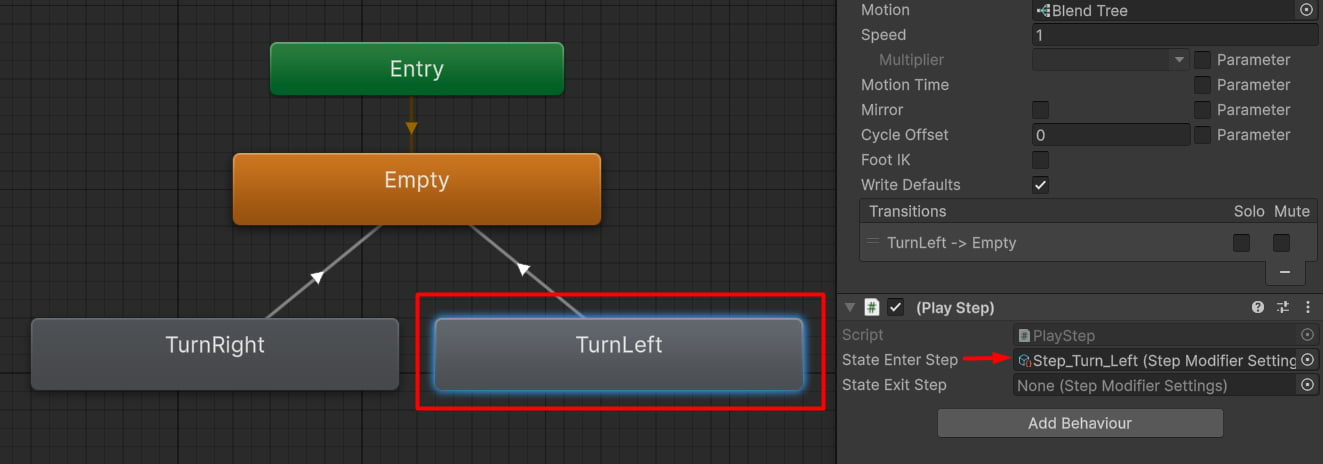 This feature is used in the CAS Demo to play steps when turning in place or finishing climbing.