> ## Documentation Index
> Fetch the complete documentation index at: https://docs.kinemation.xyz/llms.txt
> Use this file to discover all available pages before exploring further.
# ◻️Stride Modifier
> Documentation for ◻️Stride Modifier.
## Overview
**Stride Modifier** dynamically adjusts legs and pelvis motion to match the player trajectory and velocity.
 #### Bone References
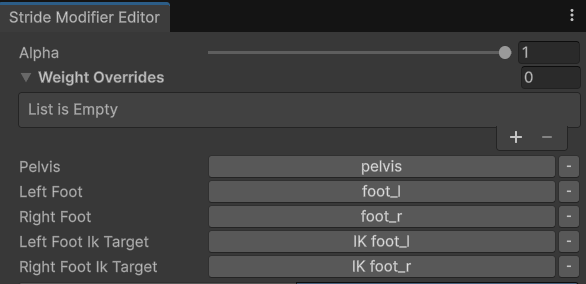
* **Pelvis** — pelvis bone reference.
* **Left Foot** — left foot bone reference.
* **Right Foot** — right foot bone reference.
* **Left Foot IK Target** — left foot IK target reference. This can be a special IK bone or CAS-generated `IK foot_l`.
* **Right Foot IK Target** — right foot IK target reference. This can be a special IK bone or CAS-generated `IK foot_r`.
#### Warping Settings
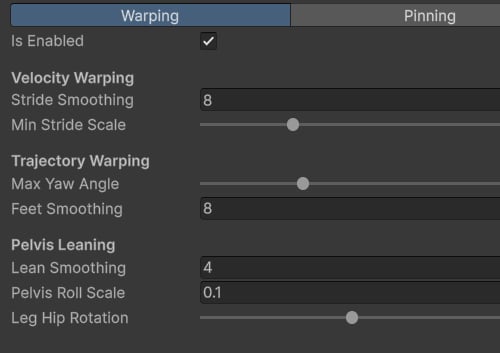
The Warping feature adjusts leg rotation to align with the movement trajectory and scales stride length based on the player's velocity.
* **Is Enabled** — turns the warping feature on or off.
* **Stride Smoothing** — controls how quickly the stride scale interpolates to its target value.
* **Min Stride Scale** — sets the minimum allowed stride length ratio.
* **Max Yaw Angle** — defines the maximum allowed yaw rotation angle.
* **Feet Smoothing** — controls how quickly the feet rotate to align with the trajectory.
* **Lean Smoothing** — controls the interpolation speed of the pelvis lean.
* **Pelvis Roll Scale** — sets the intensity of the pelvis roll rotation.
* **Leg Hip Rotation** — sets the intensity of the leg rotation toward the trajectory.
#### Pinning
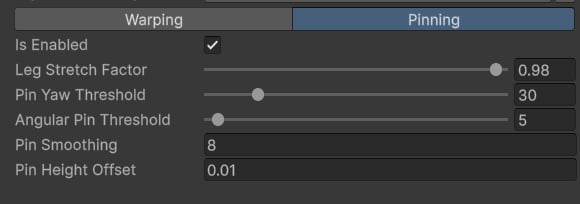
The **Pinning** feature locks the feet in world space when they make contact with the surface, helping reduce foot sliding.
* **Is Enabled** — enables or disables the pinning feature.
* **Leg Stretch Factor** — defines the maximum allowed leg stretch.
* **Pin Yaw Threshold** — if this angle is exceeded, the feet become unpinned.
* **Angular Pin Threshold** — if the foot pitch angle is below this threshold, the foot may become pinned.
* **Pin Smoothing** — controls how quickly the foot interpolates when pinning or unpinning.
* **Pin Height Offset** — controls the height range at which a foot can be pinned.
## Use-cases
The **Stride Modifier** is generally used to create a more realistic character motion and reduce foot sliding.
To use it in your project, first add a **Character Trajectory** component to the character model.
#### Bone References
* **Pelvis** — pelvis bone reference.
* **Left Foot** — left foot bone reference.
* **Right Foot** — right foot bone reference.
* **Left Foot IK Target** — left foot IK target reference. This can be a special IK bone or CAS-generated `IK foot_l`.
* **Right Foot IK Target** — right foot IK target reference. This can be a special IK bone or CAS-generated `IK foot_r`.
#### Warping Settings
The Warping feature adjusts leg rotation to align with the movement trajectory and scales stride length based on the player's velocity.
* **Is Enabled** — turns the warping feature on or off.
* **Stride Smoothing** — controls how quickly the stride scale interpolates to its target value.
* **Min Stride Scale** — sets the minimum allowed stride length ratio.
* **Max Yaw Angle** — defines the maximum allowed yaw rotation angle.
* **Feet Smoothing** — controls how quickly the feet rotate to align with the trajectory.
* **Lean Smoothing** — controls the interpolation speed of the pelvis lean.
* **Pelvis Roll Scale** — sets the intensity of the pelvis roll rotation.
* **Leg Hip Rotation** — sets the intensity of the leg rotation toward the trajectory.
#### Pinning
The **Pinning** feature locks the feet in world space when they make contact with the surface, helping reduce foot sliding.
* **Is Enabled** — enables or disables the pinning feature.
* **Leg Stretch Factor** — defines the maximum allowed leg stretch.
* **Pin Yaw Threshold** — if this angle is exceeded, the feet become unpinned.
* **Angular Pin Threshold** — if the foot pitch angle is below this threshold, the foot may become pinned.
* **Pin Smoothing** — controls how quickly the foot interpolates when pinning or unpinning.
* **Pin Height Offset** — controls the height range at which a foot can be pinned.
## Use-cases
The **Stride Modifier** is generally used to create a more realistic character motion and reduce foot sliding.
To use it in your project, first add a **Character Trajectory** component to the character model.
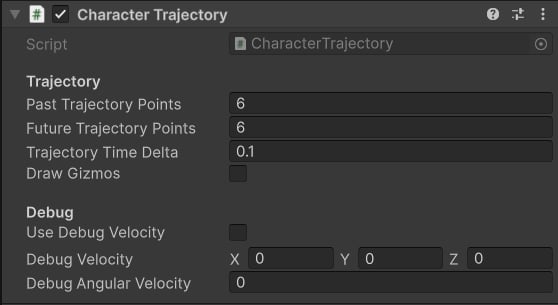 * **Past Trajectory Points** — number of past trajectory points.
* **Future Trajectory Points** — number of future trajectory points.
* **Trajectory Time Delta** — time step in seconds between each trajectory point.
* **Draw Gizmos** — toggles trajectory gizmos.
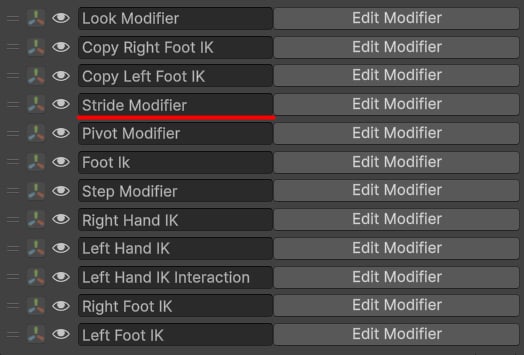
Next, add a **Stride Modifier** to your [Procedural Animation settings](/cas/core/procedural-animation) and place it before [Foot IK](/cas/modifiers/foot-ik) and [Step Modifiers](/cas/modifiers/step-modifier).
* **Past Trajectory Points** — number of past trajectory points.
* **Future Trajectory Points** — number of future trajectory points.
* **Trajectory Time Delta** — time step in seconds between each trajectory point.
* **Draw Gizmos** — toggles trajectory gizmos.
Next, add a **Stride Modifier** to your [Procedural Animation settings](/cas/core/procedural-animation) and place it before [Foot IK](/cas/modifiers/foot-ik) and [Step Modifiers](/cas/modifiers/step-modifier).
 **Note**: The default settings are designed to work well with most characters, so they can usually be used without modification
Next, it's crucial to pre-process all movement animations used in your project. Go to **Tools ▸ KINEMATION ▸ Stride Curves**, assign the Character Model, drag and drop your animations and press "Compute Stride Curves".
**Note**: The default settings are designed to work well with most characters, so they can usually be used without modification
Next, it's crucial to pre-process all movement animations used in your project. Go to **Tools ▸ KINEMATION ▸ Stride Curves**, assign the Character Model, drag and drop your animations and press "Compute Stride Curves".
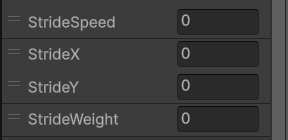
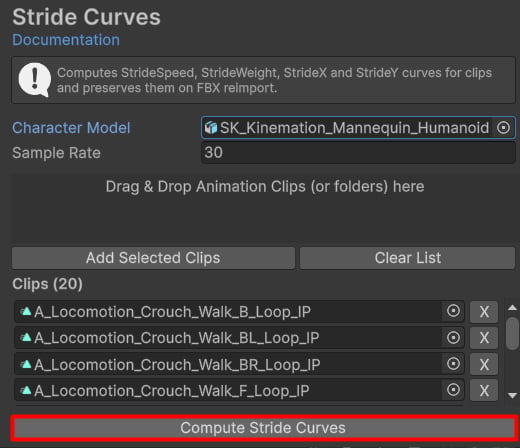 This action will add *StrideWeight*, *StrideSpeed*, *StrideX* and *StrideY* float curves to all processed animation clips.
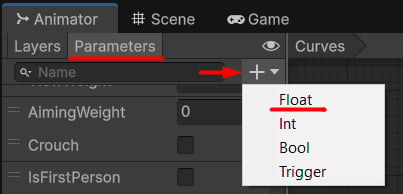
Finally, add these float parameters to your Animator Controller.
This action will add *StrideWeight*, *StrideSpeed*, *StrideX* and *StrideY* float curves to all processed animation clips.
Finally, add these float parameters to your Animator Controller.