> ## Documentation Index
> Fetch the complete documentation index at: https://docs.kinemation.xyz/llms.txt
> Use this file to discover all available pages before exploring further.
# ↗️BiRP, URP and HDRP
> In this section we will learn how to upgrade to different render pipelines.
## Pack upgrades
The **FPS Animation Pack** supports all three render pipelines in Unity. By default, the imported package is going to be **URP-only**. To upgrade to other render pipelines, go to **KINEMATION → FPSAnimationPack → RenderPipelineUpgrades**:
 Select the package for your desired render pipeline and double-click on it. Then, click **"Import"** - this will override weapon and character prefabs with settings adjusted for the selected pipeline.
**Note**: to revert to *URP,* go to the **Package Manager** and just re-import the asset.
## Demo scene upgrades
The packs above only upgrade character arms and weapons. To use a demo scene for your desired render pipeline, make sure to use one of these packages:
Select the package for your desired render pipeline and double-click on it. Then, click **"Import"** - this will override weapon and character prefabs with settings adjusted for the selected pipeline.
**Note**: to revert to *URP,* go to the **Package Manager** and just re-import the asset.
## Demo scene upgrades
The packs above only upgrade character arms and weapons. To use a demo scene for your desired render pipeline, make sure to use one of these packages:
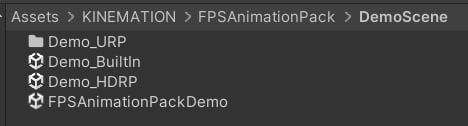 **Note**: the default scene is **URP**.