> ## Documentation Index
> Fetch the complete documentation index at: https://docs.kinemation.xyz/llms.txt
> Use this file to discover all available pages before exploring further.
# 🏃♂️How to replace character mesh
> In this section we will cover how to add a custom character mesh.
## Tutorial
The FPS Animation Pack works with UE4 and UE5 Epic Skeletons. This means you can easily add your custom model in a few clicks.
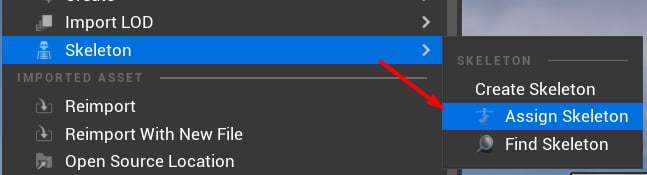
First, add your model to the project and assign the **SK\_Mannequin\_Skeleton** (for UE4 models) or **SK\_Mannequin** (for UE5 models):
 Next, we need to set the new mesh in the CS\_Mannequin asset:
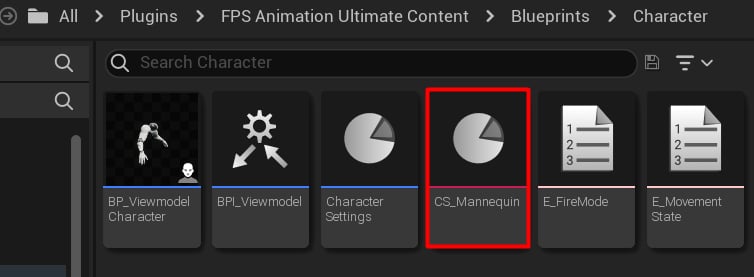 Tip: this asset is located in the plugin content. If you don't see it, make sure to enable plugin filters [Overview](/fps-animation-pack/unreal/tutorial/overview).
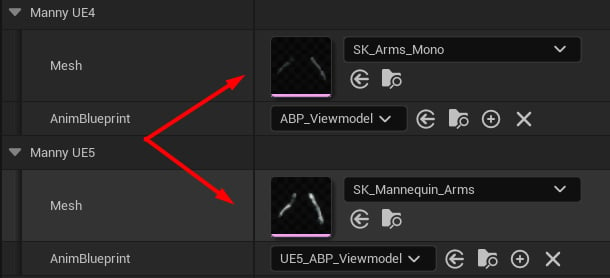
Finally, assign your custom mesh as a UE4 or a UE5 one:
Tip: this asset is located in the plugin content. If you don't see it, make sure to enable plugin filters [Overview](/fps-animation-pack/unreal/tutorial/overview).
Finally, assign your custom mesh as a UE4 or a UE5 one: