> ## Documentation Index
> Fetch the complete documentation index at: https://docs.kinemation.xyz/llms.txt
> Use this file to discover all available pages before exploring further.
# 📦FBX Exporter
> In this section we will learn how to export animations.
**FBX Exporter** is a built-in KINEMATION tool that lets you export animations as ASCII FBX files. It works with any skeleton and properly supports root motion.
### How to use it
To use the tool, go to **Tools▸ KINEMATION ▸ FBX Exporter**:
 * **Model** — the skinned mesh that will be animated.
* **Animation Clip** — the animation to export.
* **Start Time** — start time in seconds.
* **End Time** — end time in seconds.
* **Base Sample Rate** — target export frame rate (frames per second).
* **Include Scale Curves** — whether to include scale curves or not.
* **Optimized Constant Curves** — whether to remove redundant keyframes for constant curves.
* **Output Asset Folder** — where the exported FBX files will be saved.
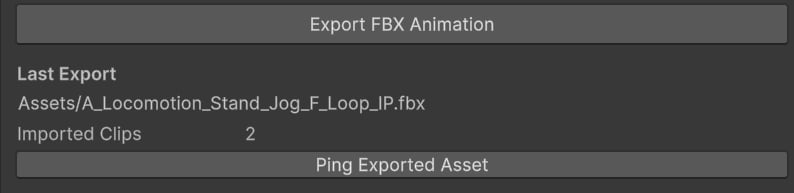
Select a model and animation to export as FBX. Next, hit the **"Export FBX Animation"** button. Once exported, FBX info will be displayed under the button:
* **Model** — the skinned mesh that will be animated.
* **Animation Clip** — the animation to export.
* **Start Time** — start time in seconds.
* **End Time** — end time in seconds.
* **Base Sample Rate** — target export frame rate (frames per second).
* **Include Scale Curves** — whether to include scale curves or not.
* **Optimized Constant Curves** — whether to remove redundant keyframes for constant curves.
* **Output Asset Folder** — where the exported FBX files will be saved.
Select a model and animation to export as FBX. Next, hit the **"Export FBX Animation"** button. Once exported, FBX info will be displayed under the button: