> ## Documentation Index
> Fetch the complete documentation index at: https://docs.kinemation.xyz/llms.txt
> Use this file to discover all available pages before exploring further.
# 🔫FPS Animations
> In this tutorial you will learn how to retarget weapon animations.
**Retarget Pro** has a special [FPS Retargeting](/retarget-pro/workflow/retarget-features/fps-retargeting) feature that can be used to share first-person weapon animations.
## Weapon Bone
FPS Retargeting relies on a weapon bone — a special game object in the hierarchy that will be used to bake weapon movement.
If your skeleton doesn't have a gun bone, you can add it manually:
#### 1. Drag your model into the scene
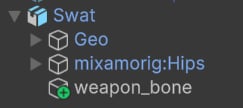
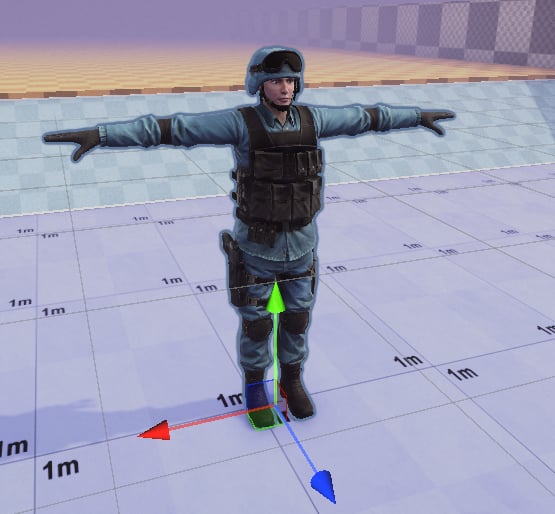 #### 2. Add an empty "weapon\_bone" Game Object.
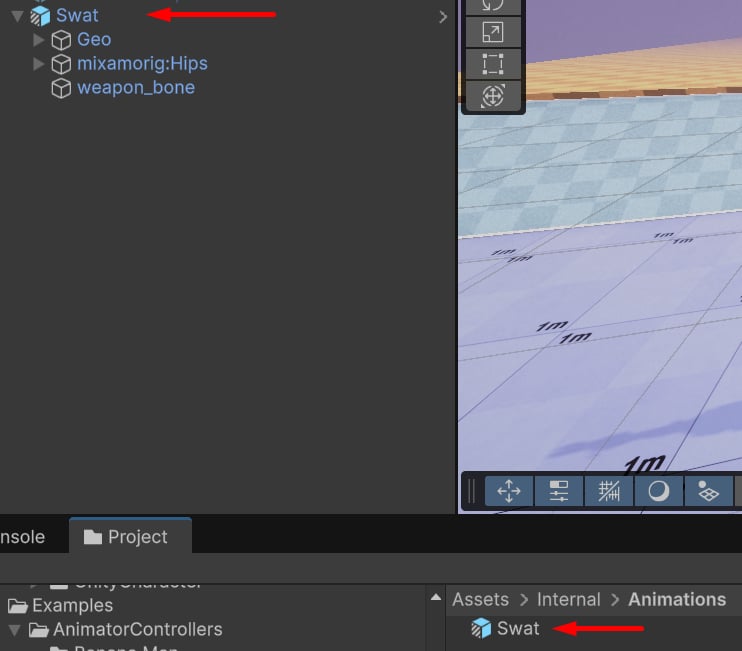
 #### 3. Save your model as a prefab variant.
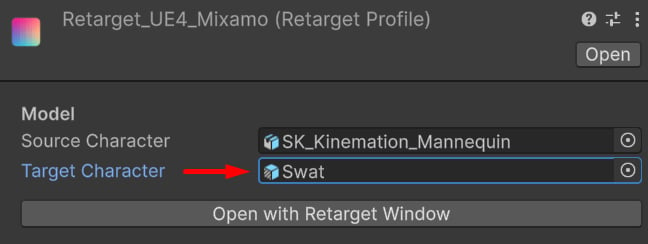
 #### 4. Update the character model.
Go to the Retarget Profile asset (or create a new one) and assign the new prefab variant:
#### 4. Update the character model.
Go to the Retarget Profile asset (or create a new one) and assign the new prefab variant:
 ## Setup
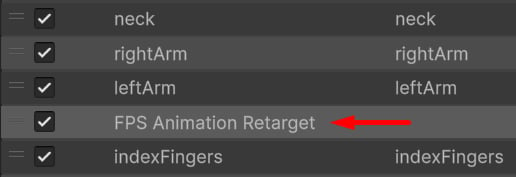
Open the [**Retarget Window**](/retarget-pro/workflow/retarget-window) and go to the "Bone Chain Settings" and add an FPS feature:
## Setup
Open the [**Retarget Window**](/retarget-pro/workflow/retarget-window) and go to the "Bone Chain Settings" and add an FPS feature:
 Place this feature after the arms and before finger retargeting features:
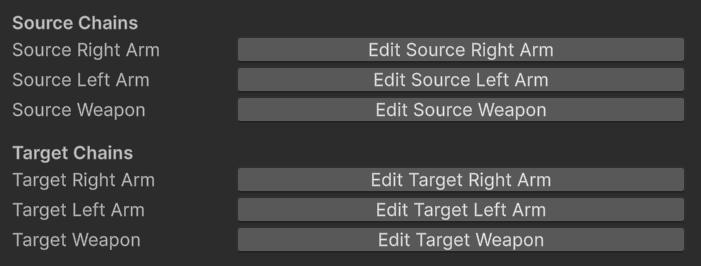
 For most characters, bone chains will be mapped automatically. It's recommended to double-check by manually editing source and target chains:
 ## Weapon Preview
It's possible to add a weapon preview directly to the character.
Go to the **"Item"** tab and assign the weapon model, animation and the attach bone:
## Weapon Preview
It's possible to add a weapon preview directly to the character.
Go to the **"Item"** tab and assign the weapon model, animation and the attach bone:
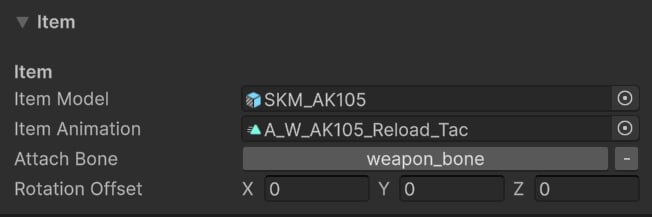 **Tip**: This will help with hands positioning.
## Retargeting
Finally, select the animation you'd like to retarget and click "Play":
**Tip**: This will help with hands positioning.
## Retargeting
Finally, select the animation you'd like to retarget and click "Play":
 **Tip**: Click IK target cubes to activate Gizmo handles to position the weapon, hands and elbows.