> ## Documentation Index
> Fetch the complete documentation index at: https://docs.kinemation.xyz/llms.txt
> Use this file to discover all available pages before exploring further.
# 🏃Retargeting
> In this tutorial you will learn the basics of retargeting.
## Preview
To start retargeting, go to to the **"Playback & Preview"** section and pick an animation:
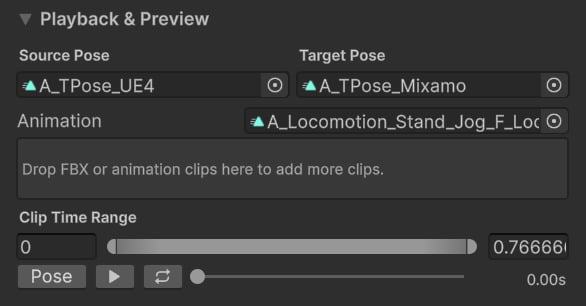 **Tip**: You can drag\&drop multiple clips!
Click the "Play", "Loop" button or simply drag the playback slider to retarget animations:
**Tip**: You can drag\&drop multiple clips!
Click the "Play", "Loop" button or simply drag the playback slider to retarget animations:
 ## Adjustments
It's often recommended to adjust retarget features to get the animations look right. Go to the **"Bone Chain Settings"** tab and click on any feature from the list:
## Adjustments
It's often recommended to adjust retarget features to get the animations look right. Go to the **"Bone Chain Settings"** tab and click on any feature from the list:
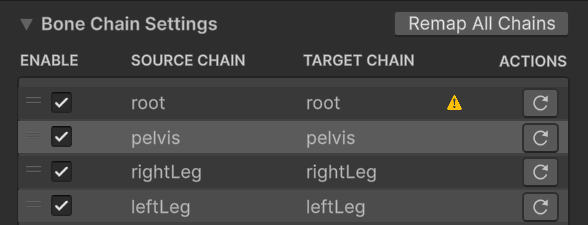 Once selected, a feature inspector will appear at the bottom of the list:
 **Note**: To find our more about each feature settings, please see [Retarget Features](/retarget-pro/workflow/retarget-features).
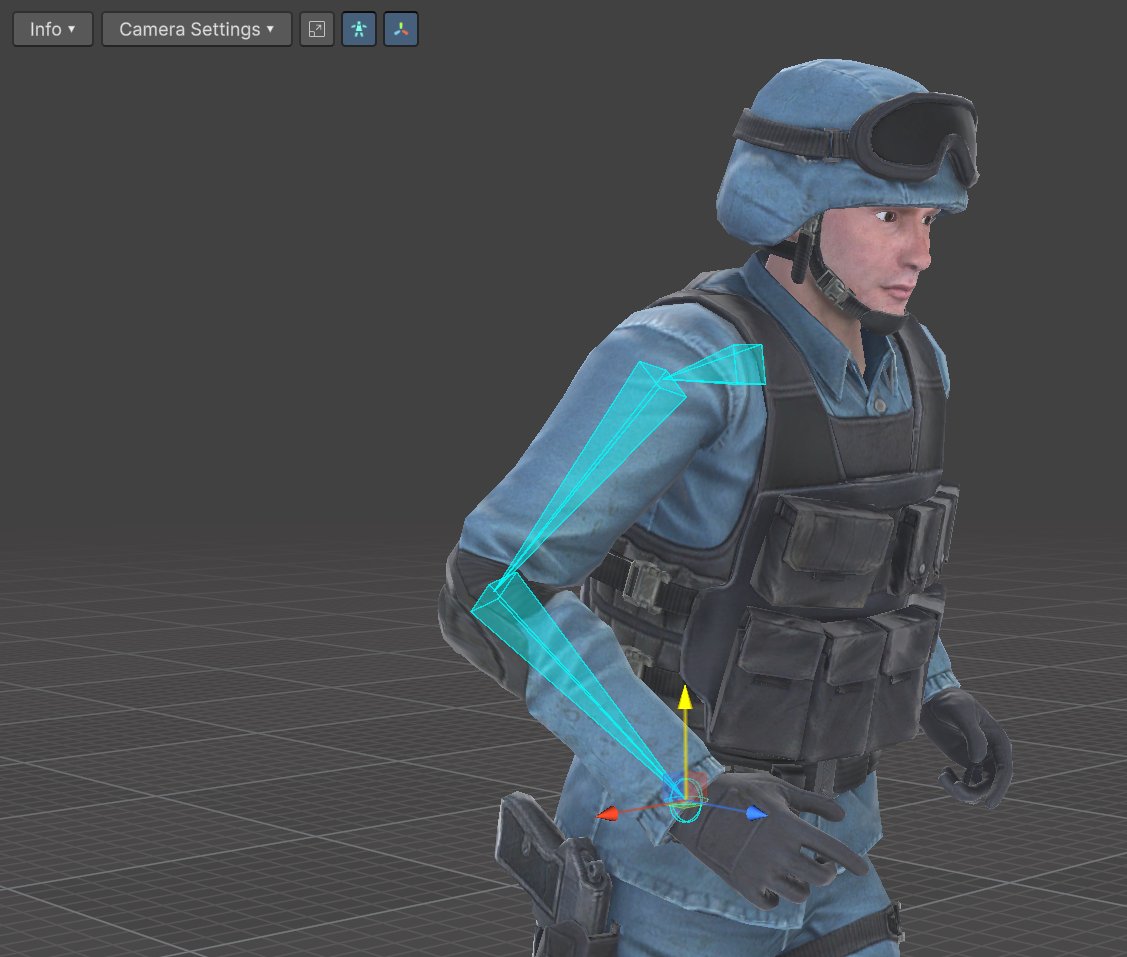
To display the bone renderer and gizmos, toggle the "Skeleton" and "Gizmo" icons in the scene preview:
**Note**: To find our more about each feature settings, please see [Retarget Features](/retarget-pro/workflow/retarget-features).
To display the bone renderer and gizmos, toggle the "Skeleton" and "Gizmo" icons in the scene preview:
 The bone renderer will display source and target bone chains, and gizmos will expose transform handles to adjust bone positions.