> ## Documentation Index
> Fetch the complete documentation index at: https://docs.kinemation.xyz/llms.txt
> Use this file to discover all available pages before exploring further.
# 🪟Retarget Window
> In this section we will cover Retarget Pro Window settings and features.
**Retarget Pro Window** is the main workspace for adjusting, previewing and baking animations.
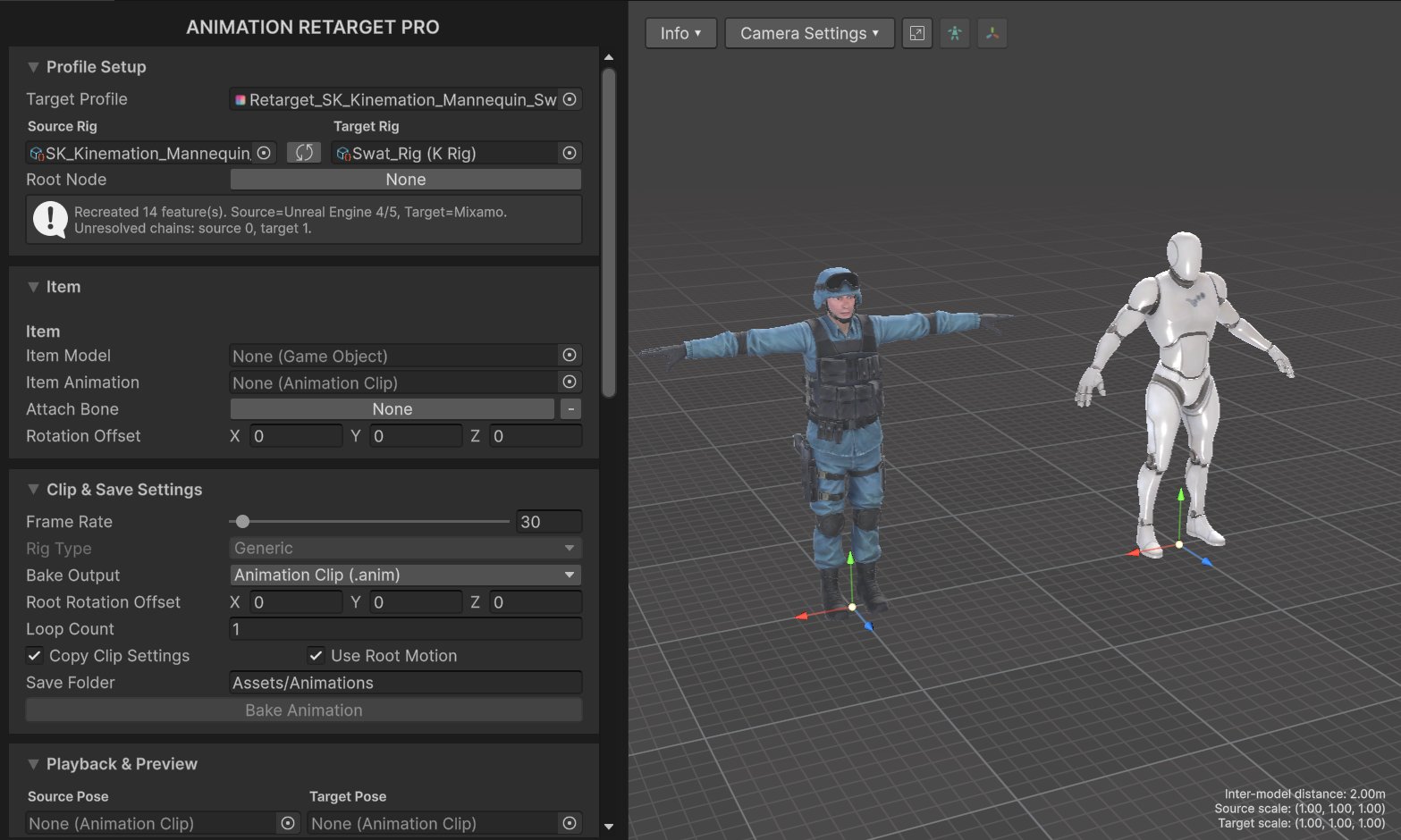 It's opened automatically when creating a new Retarget Profile.
To open it manually, double-click on a Retarget Profile or go to **Window ▸ KINEMATION** **▸Retarget Pro**.
### Control Panel
This is the left side of the window that contains various retargeting settings, grouped as dropdown tabs.
#### Profile Setup
> This tab displays general character skeleton settings.
It's opened automatically when creating a new Retarget Profile.
To open it manually, double-click on a Retarget Profile or go to **Window ▸ KINEMATION** **▸Retarget Pro**.
### Control Panel
This is the left side of the window that contains various retargeting settings, grouped as dropdown tabs.
#### Profile Setup
> This tab displays general character skeleton settings.
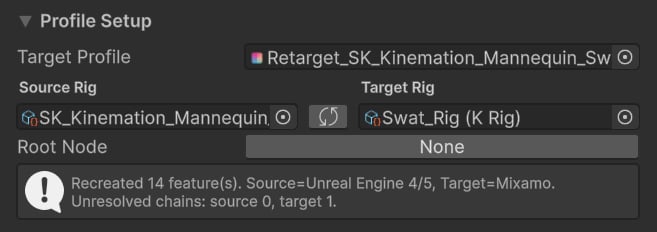 * **Target Profile** — current Retarget Profile.
* **Source Rig** — skeleton of the source character.
* **Target Rig** — skeleton of the target character.
* **Root Node** — the top/root bone in the hierarchy (only used for root motion).
Press the "swap" button to swap source and target character skeletons. This action will re-generate bone chains for both skeletons.
**Root Node** is to properly bake root motion. If your target character has a root bone (e.g., root, skeleton, armature, etc.) specify it here.
#### Item
> This tab displays settings for a preview item (e.g., weapon).
* **Target Profile** — current Retarget Profile.
* **Source Rig** — skeleton of the source character.
* **Target Rig** — skeleton of the target character.
* **Root Node** — the top/root bone in the hierarchy (only used for root motion).
Press the "swap" button to swap source and target character skeletons. This action will re-generate bone chains for both skeletons.
**Root Node** is to properly bake root motion. If your target character has a root bone (e.g., root, skeleton, armature, etc.) specify it here.
#### Item
> This tab displays settings for a preview item (e.g., weapon).
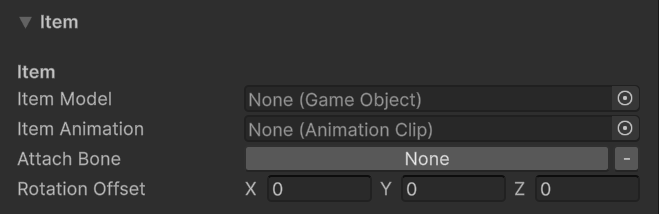 * **Item Model** — the skinned mesh of the preview item (e.g., rifle or a sword).
* **Item Animation** — the animation to preview on the selected item (e.g., reload).
* **Attach Bone** — the bone to attach the item to.
* **Rotation Offset** — local rotation offset applied to the item.
These settings are useful when you want to preview an item together with the character animation.
**Example**: When retargeting a reload animaiton, it's useful to have a weapon animated to see how to position character IK.
#### Clip & Save Settings
> This tab displays animation exporting settings.
* **Item Model** — the skinned mesh of the preview item (e.g., rifle or a sword).
* **Item Animation** — the animation to preview on the selected item (e.g., reload).
* **Attach Bone** — the bone to attach the item to.
* **Rotation Offset** — local rotation offset applied to the item.
These settings are useful when you want to preview an item together with the character animation.
**Example**: When retargeting a reload animaiton, it's useful to have a weapon animated to see how to position character IK.
#### Clip & Save Settings
> This tab displays animation exporting settings.
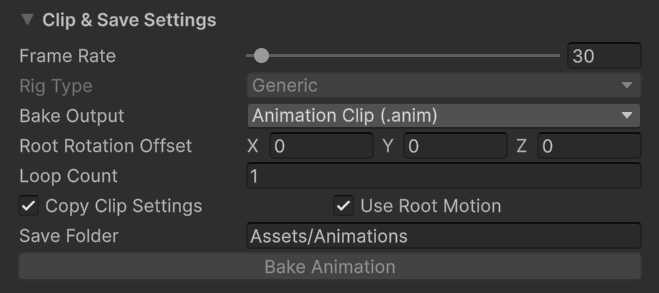 * **Frame Rate** — target export frame rate.
* **Rig Type** — only Generic is available by default.
* **Bake Output** — bake the animation as a clip or FBX file.
* **Root Rotation Offset** — local rotation offset for the root bone. Useful for models with non-standard/offset roots.
* **Loop Count** — number of animation loops to include. Useful for continous locomotion actions.
* **Copy Clip Settings** — whether to copy source clip settings (e.g., Loop, Bake Into Pose, etc.).
* **Use Root Motion** — whether to use root motion from the source character.
* **Save Folder** — output directory for retargeted animations.
#### Playback & Preview
> This tab displays the playback and what animations to use.
* **Frame Rate** — target export frame rate.
* **Rig Type** — only Generic is available by default.
* **Bake Output** — bake the animation as a clip or FBX file.
* **Root Rotation Offset** — local rotation offset for the root bone. Useful for models with non-standard/offset roots.
* **Loop Count** — number of animation loops to include. Useful for continous locomotion actions.
* **Copy Clip Settings** — whether to copy source clip settings (e.g., Loop, Bake Into Pose, etc.).
* **Use Root Motion** — whether to use root motion from the source character.
* **Save Folder** — output directory for retargeted animations.
#### Playback & Preview
> This tab displays the playback and what animations to use.
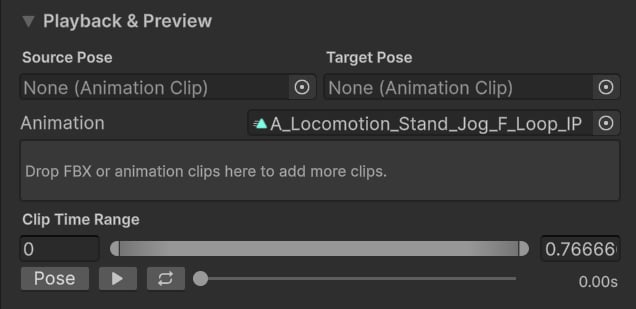 * **Source Pose** — source character base pose (e.g., T or A pose).
* **Target Pose** — target character base pose (e.g., T or A pose).
* **Animation** — a single or multiple clips to retarget.
* **Clip Time Range** (for single clips) — defines the start and end animation time.
* **Pose** — stops the playback and resets character poses.
* **Play** — starts the retargeting.
* **Loop** — toggles animation looping.
**Source** and **Target Pose** clips are sampled before the retargeting starts.
**Tip**: Initial poses directly impact the retargeting quality, so it's important that both characters have identical poses.
**Retarget Pro** comes with T poses for popular skeletons:
* **Source Pose** — source character base pose (e.g., T or A pose).
* **Target Pose** — target character base pose (e.g., T or A pose).
* **Animation** — a single or multiple clips to retarget.
* **Clip Time Range** (for single clips) — defines the start and end animation time.
* **Pose** — stops the playback and resets character poses.
* **Play** — starts the retargeting.
* **Loop** — toggles animation looping.
**Source** and **Target Pose** clips are sampled before the retargeting starts.
**Tip**: Initial poses directly impact the retargeting quality, so it's important that both characters have identical poses.
**Retarget Pro** comes with T poses for popular skeletons:
 #### Bone Chain Settings
> This tab displays what retarget features and chains are used in this profile.
#### Bone Chain Settings
> This tab displays what retarget features and chains are used in this profile.
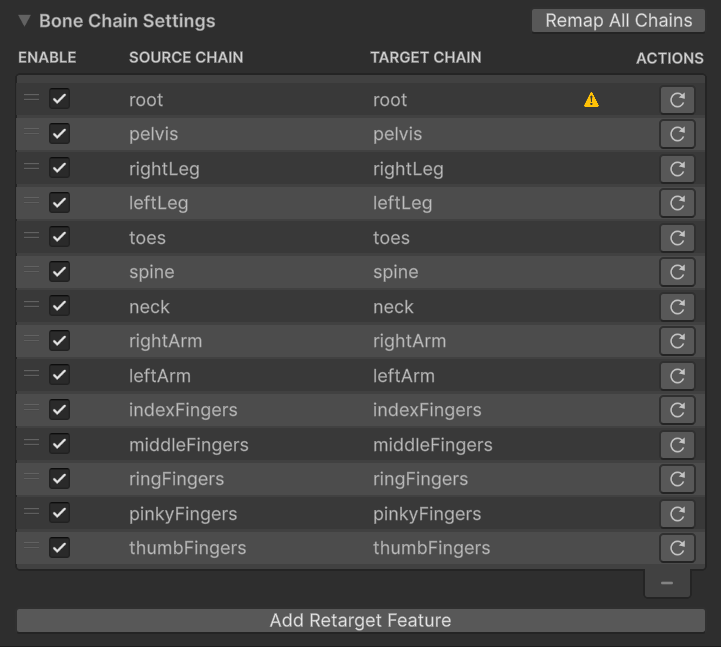 All features and bone chains are displayed as a single list. The order matters — features are applied as they are ordered in the list.
**Tip**: See [Retarget Features](/retarget-pro/workflow/retarget-features) to find our more about all retarget features.
To see feature settings, click on any list elements and scroll down:
All features and bone chains are displayed as a single list. The order matters — features are applied as they are ordered in the list.
**Tip**: See [Retarget Features](/retarget-pro/workflow/retarget-features) to find our more about all retarget features.
To see feature settings, click on any list elements and scroll down:
 **Retarget Pro** natively supports popular skeleton types:
* Mixamo.
* Synty.
* Character Creator.
* UE4/UE5.
* Humanoid (General)
* Quadruped (Animals).
#### Notifications & Help
These last tabs are used to display notification and help messages, which can be quite helpful with troubleshooting.
**Retarget Pro** natively supports popular skeleton types:
* Mixamo.
* Synty.
* Character Creator.
* UE4/UE5.
* Humanoid (General)
* Quadruped (Animals).
#### Notifications & Help
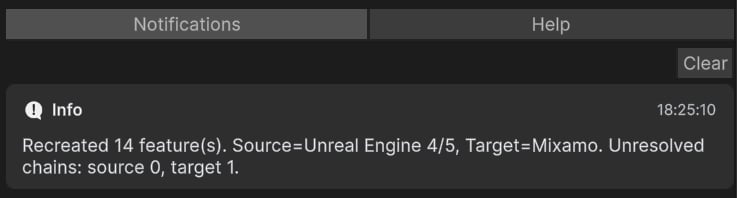
These last tabs are used to display notification and help messages, which can be quite helpful with troubleshooting.