> ## Documentation Index
> Fetch the complete documentation index at: https://docs.kinemation.xyz/llms.txt
> Use this file to discover all available pages before exploring further.
# Procedural animation
> This page explains procedural assets, feature settings, and blending between weapon poses.
export const assetImageCaption_0 = "The Sci-Fi procedural template and its ordered feature list."
export const assetImage_0 =
 export const templateAsset_0 = "PA_Template_SciFi_FPS"
export const productName_0 = "Sci-Fi FPS Pack"
export const overridePattern_0 = "PA_SciFi_FPS_*"
export const overrideImageCaption_0 = "Create a local override for one inherited procedural feature."
export const overrideImage_0 =
export const templateAsset_0 = "PA_Template_SciFi_FPS"
export const productName_0 = "Sci-Fi FPS Pack"
export const overridePattern_0 = "PA_SciFi_FPS_*"
export const overrideImageCaption_0 = "Create a local override for one inherited procedural feature."
export const overrideImage_0 =
 ## Overview
A `GameplayProceduralAsset` defines the procedural animation for an item or pose. It combines an idle animation, an optional overlay Animator Controller, and a list of features such as aiming, sway, and weapon offsets.
Assign it to **Procedural Asset** on the item's `GameplayItemView`. When you equip the item, the view applies that asset to `GameplayAnimationController`. Different weapons can use different positions and aim settings while sharing the same basic features.
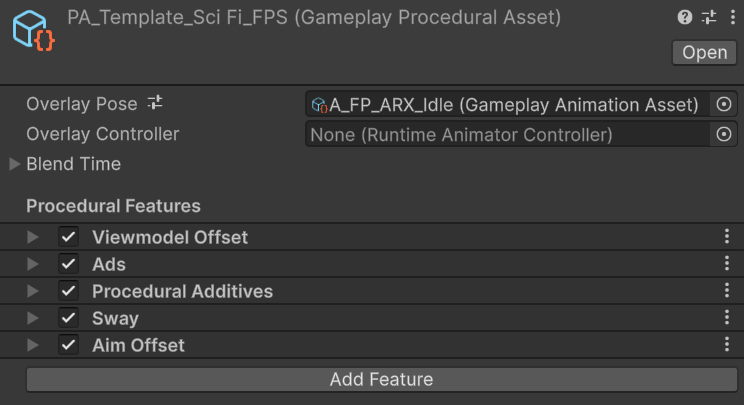
{assetImage_0}
## Asset settings
Create an asset with **Assets ▸ Create ▸ KINEMATION ▸ Gameplay Framework ▸ Procedural Asset**.
* **Default Idle Pose** is the character's resting pose for this item. It is a `GameplayAnimationAsset`, so assign the character animation asset rather than the weapon's own clip.
* **Overlay Controller** is an optional Animator Controller for more complex overlay animation. It takes over overlay playback when assigned. Matching non-trigger parameters are copied from the character Animator.
* **Blend Time** controls the transition from the previous procedural pose. The controller uses the blend-in duration and easing when changing assets.
* **Features** is the ordered list of procedural adjustments. Click **Add Feature** to add one.
The idle pose is also used as a reference for procedural alignment. Changing it can affect where a weapon sits even when the feature values stay the same.
## Feature order and weight
Features run from top to bottom. Each feature starts with the pose produced by the previous feature. For example, weapon placement changes the pose that ADS aligns, and sway then adds movement to that aligned pose.
The controller prepares the IK targets before the feature list and solves the arms and legs afterward. Features can therefore move the weapon and hand targets before the final limb pose is calculated.
Each feature has a **Weight** between `0` and `1`. Set it to `0` to turn off that feature's effect while checking the others. Use intermediate values to reduce its influence. Removing a feature changes the list itself.
Configure the feature list in the editor. Changing feature order at runtime is different from adjusting a weight: the active animation jobs were built in the original order.
## Per-weapon settings
`GameplayProceduralOverride` lets several weapons share a parent asset while changing selected features.
Use
## Overview
A `GameplayProceduralAsset` defines the procedural animation for an item or pose. It combines an idle animation, an optional overlay Animator Controller, and a list of features such as aiming, sway, and weapon offsets.
Assign it to **Procedural Asset** on the item's `GameplayItemView`. When you equip the item, the view applies that asset to `GameplayAnimationController`. Different weapons can use different positions and aim settings while sharing the same basic features.
{assetImage_0}
## Asset settings
Create an asset with **Assets ▸ Create ▸ KINEMATION ▸ Gameplay Framework ▸ Procedural Asset**.
* **Default Idle Pose** is the character's resting pose for this item. It is a `GameplayAnimationAsset`, so assign the character animation asset rather than the weapon's own clip.
* **Overlay Controller** is an optional Animator Controller for more complex overlay animation. It takes over overlay playback when assigned. Matching non-trigger parameters are copied from the character Animator.
* **Blend Time** controls the transition from the previous procedural pose. The controller uses the blend-in duration and easing when changing assets.
* **Features** is the ordered list of procedural adjustments. Click **Add Feature** to add one.
The idle pose is also used as a reference for procedural alignment. Changing it can affect where a weapon sits even when the feature values stay the same.
## Feature order and weight
Features run from top to bottom. Each feature starts with the pose produced by the previous feature. For example, weapon placement changes the pose that ADS aligns, and sway then adds movement to that aligned pose.
The controller prepares the IK targets before the feature list and solves the arms and legs afterward. Features can therefore move the weapon and hand targets before the final limb pose is calculated.
Each feature has a **Weight** between `0` and `1`. Set it to `0` to turn off that feature's effect while checking the others. Use intermediate values to reduce its influence. Removing a feature changes the list itself.
Configure the feature list in the editor. Changing feature order at runtime is different from adjusting a weight: the active animation jobs were built in the original order.
## Per-weapon settings
`GameplayProceduralOverride` lets several weapons share a parent asset while changing selected features.
Use {templateAsset_0} for the common settings in {productName_0}. The {overridePattern_0} assets change individual weapon placement and aiming settings.
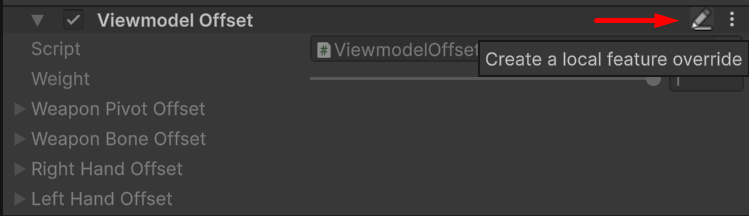
{overrideImage_0}
Edit the parent when all weapons should receive the change. Create a local feature override when only one weapon needs a different value. **Revert** removes the local change and uses the parent feature again.
An override keeps the parent's feature order and substitutes the features you override. Its **Default Idle Pose**, **Overlay Controller**, and **Blend Time** are settings on the override asset itself. The parent must be a regular procedural asset; nested procedural overrides are not supported.
## Change the active asset at runtime
`GameplayItemView.OnEquipItem` calls this method automatically:
```csharp wrap theme={null}
public virtual void UpdateProceduralAsset(
GameplayProceduralAsset newSettings,
GameplayItemView view = null);
```
Pass the equipped view when features need information from the item, such as its aim point. Here is a component for changing the active weapon's pose from gameplay code:
```csharp wrap theme={null}
using KINEMATION.Shared.GameplayFramework.Scripts.Runtime.Animation;
using KINEMATION.Shared.GameplayFramework.Scripts.Runtime.Items;
using UnityEngine;
public class WeaponPoseSwitcher : MonoBehaviour
{
[SerializeField] private GameplayAnimationController animationController;
[SerializeField] private GameplayItemView equippedView;
[SerializeField] private GameplayProceduralAsset readyPose;
[SerializeField] private GameplayProceduralAsset loweredPose;
public void SetWeaponLowered(bool lowered)
{
animationController.UpdateProceduralAsset(
lowered ? loweredPose : readyPose, equippedView);
}
}
```
Assign both assets and the current item view, then call `SetWeaponLowered` after the character has initialized. Each asset can use a different idle pose and feature settings.
Passing the same asset and view again does nothing. Passing `null` as the asset removes the active overlay source and its procedural features.
### Adjust a feature
Use `GetProceduralFeature()` to find the first feature of a type in the resolved list. On a procedural override, this returns the local override when one exists, or the inherited feature otherwise.
For example, this method changes the weight of the active weapon's sway:
```csharp wrap theme={null}
using KINEMATION.Shared.GameplayFramework.Scripts.Runtime.Animation;
using KINEMATION.Shared.ShooterCore.Scripts.Runtime.Procedural;
using UnityEngine;
public class WeaponSwayControl : MonoBehaviour
{
[SerializeField] private GameplayAnimationController animationController;
public void SetSwayWeight(float weight)
{
GameplayProceduralAsset asset = animationController.ProceduralAsset;
if (asset == null) return;
ShooterSwayFeature sway = asset.GetProceduralFeature();
if (sway != null) sway.weight = Mathf.Clamp01(weight);
}
}
```
Feature weights are read every update. Assets and inherited features can be shared by several characters, so changing one changes every user of that instance. Use separate assets or runtime copies of the asset and its feature objects when each character needs independent settings.
Do not assume that calling `UpdateProceduralAsset` with the same reference will rebuild a feature after structural changes. Switch between preconfigured assets for different feature lists.
## Blending between poses
When the character changes procedural assets, the controller caches the current pose and blends from it into the new result. This smooths changes to weapon placement, idle pose, and procedural settings.
The incoming asset's **Blend Time** determines the transition. A blend-in time of `0` applies the new setup immediately. The first procedural asset also applies immediately because there is no previous procedural pose to blend from.
`UpdateProceduralAsset` requests this transition automatically. For a custom animation change, you can request pose blending directly:
```csharp wrap theme={null}
public virtual void RequestPoseBlending(BlendTime blendTime);
```
Pose blending smooths the change in the final character pose. The Blend Time on an individual `GameplayAnimationAsset` instead controls that action's blend into and out of its animation slot.
## Feature stack
The pack template applies these five features in order:
1. [Viewmodel offset](/sci-fi-fps-pack/unity/general/features/viewmodel-offset) aligns the weapon and hand IK targets.
2. [ADS](/sci-fi-fps-pack/unity/general/features/ads) aligns the weapon aim point with the character aim target.
3. [Procedural additives](/sci-fi-fps-pack/unity/general/features/procedural-additives) applies authored additive movement and runtime recoil.
4. [Sway](/sci-fi-fps-pack/unity/general/features/sway) applies spring motion from movement and look input.
5. [Aim offset](/sci-fi-fps-pack/unity/general/features/aim-offset) distributes view pitch, yaw, and lean across the body and can turn the model in place.
Adjust weapon placement and ADS first, then tune recoil and sway. Test Aim Offset with your character controller: disable its Turn In Place option when the controller already rotates the character from mouse input.