> ## Documentation Index
> Fetch the complete documentation index at: https://docs.kinemation.xyz/llms.txt
> Use this file to discover all available pages before exploring further.
# Animation Clip Sampler
> Sample an animation clip on a Sci-Fi FPS Pack scene character at an exact time.
export const menuPath_0 = "Tools > KINEMATION"
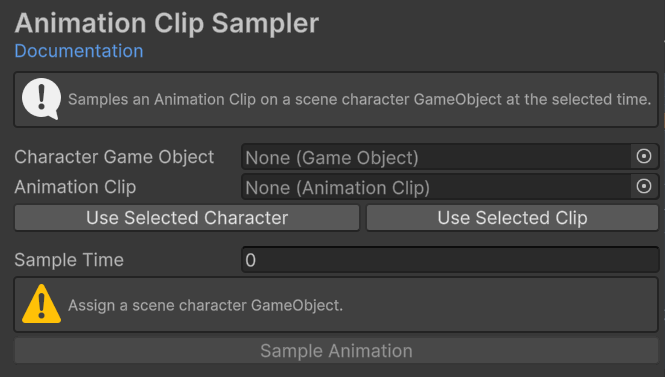
export const imageCaption_0 = "Animation Clip Sampler before assigning a scene character and clip."
export const image_0 =
 ## Animation Clip Sampler
Use Animation Clip Sampler to pose a character in the open scene at an exact time from an
## Animation Clip Sampler
Use Animation Clip Sampler to pose a character in the open scene at an exact time from an AnimationClip. Use it to inspect a contact pose, compare alignment, or leave a character in a reference pose.
Open **{menuPath_0}**, then select **Animation > Animation Clip Sampler**.
{image_0}
## Inputs
| Field | Purpose |
| ------------------------- | ----------------------------------------------------------------------------------------- |
| **Character Game Object** | Scene object that receives sampled transform values. Prefab and model assets are invalid. |
| **Animation Clip** | Visible AnimationClip to sample. Hidden preview clips are rejected. |
| **Sample Time** | Time in seconds, clamped between zero and the clip length. |
| **Time** | Slider for the same sample time after you assign a clip. |
Use **Use Selected Character** for the active Hierarchy object. Use **Use Selected Clip** for the selected Project clip.
## Sample a pose
Drag the character root from the Hierarchy into **Character Game Object**.
Drag an animation into **Animation Clip**, or select it and click **Use Selected Clip**.
Enter **Sample Time** or use the **Time** slider.
Click **Sample Animation**. The status reports the clip, time, and target.
Sampling writes transform values to the scene hierarchy, records prefab-instance overrides, and marks the scene dirty. Use Unity Undo if you only needed a temporary pose. The tool creates no animation asset.
The operation succeeds when the Scene view updates and the tool reports the sampled clip and character.