> ## Documentation Index
> Fetch the complete documentation index at: https://docs.kinemation.xyz/llms.txt
> Use this file to discover all available pages before exploring further.
# FBX Exporter
> Export Sci-Fi FPS Pack animation clips as standalone ASCII FBX assets.
export const menuPath_0 = "Tools > KINEMATION"
export const imageCaption_0 = "FBX Exporter queue, sampling, curve, and output settings."
export const image_0 =
 ## FBX Exporter
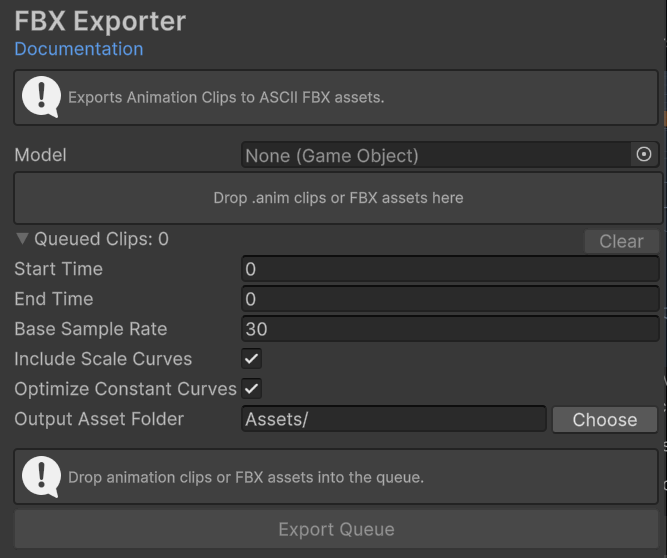
Use FBX Exporter to bake Unity animation clips onto a model and create ASCII FBX assets. Use it when another DCC tool, engine, or project needs a standalone model-and-animation file.
Open **{menuPath_0}**, then select **Animation > FBX Exporter**.
{image_0}
## Inputs and output
| Field | Purpose |
| ---------------------------- | --------------------------------------------------------------------------------------------------- |
| **Model** | Hierarchy that supplies the skeleton and default transforms for every queued clip. |
| Clip queue | Accepts
## FBX Exporter
Use FBX Exporter to bake Unity animation clips onto a model and create ASCII FBX assets. Use it when another DCC tool, engine, or project needs a standalone model-and-animation file.
Open **{menuPath_0}**, then select **Animation > FBX Exporter**.
{image_0}
## Inputs and output
| Field | Purpose |
| ---------------------------- | --------------------------------------------------------------------------------------------------- |
| **Model** | Hierarchy that supplies the skeleton and default transforms for every queued clip. |
| Clip queue | Accepts .anim clips and FBX assets. An FBX contributes each visible, non-preview clip. |
| **Start Time** | First sampled time in seconds. |
| **End Time** | Last sampled time. Leave it at 0 to use the full clip length. |
| **Base Sample Rate** | Samples per second. A non-positive value falls back to the clip rate, then to 30. |
| **Include Scale Curves** | Writes scale animation into the exported FBX. |
| **Optimize Constant Curves** | Reduces tracks that do not change. |
| **Output Asset Folder** | Destination inside the project's Assets folder. |
## Export clips
Drag the character or item model into **Model**.
Drag .anim clips or FBX assets into the drop area.
Set the time range and sample rate. Keep scale curves when scale carries meaningful animation.
Enter a project-relative folder or click **Choose**. Keep it under Assets.
Click **Export Queue**. The tool creates and imports one uniquely named .fbx asset per clip.
After export, **Last Export** shows the final path and imported clip count. Click **Ping Exported Asset** to locate it.
The exporter creates new ASCII FBX files and does not replace queued source clips. Unity generates a unique path when a requested file name already exists.