> ## Documentation Index
> Fetch the complete documentation index at: https://docs.kinemation.xyz/llms.txt
> Use this file to discover all available pages before exploring further.
# Update Packages
> Check, update, or reinstall the KINEMATION dependencies used by the Sci-Fi FPS Pack.
export const productName_0 = "Sci-Fi FPS Pack"
export const menuPath_0 = "Tools > KINEMATION"
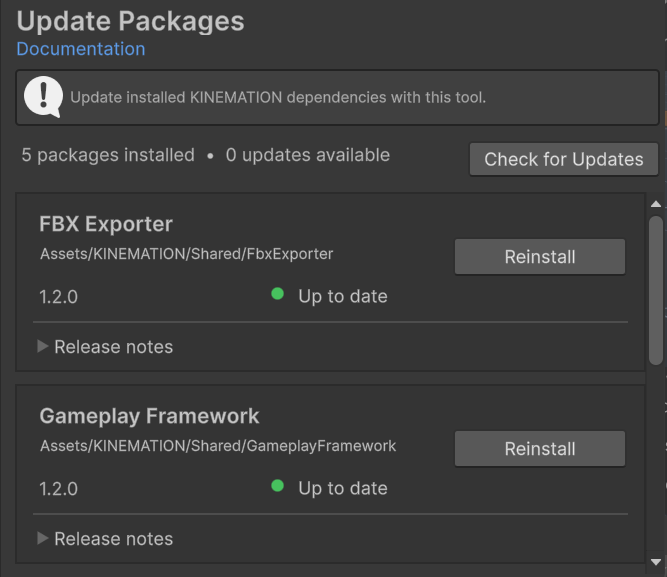
export const imageCaption_0 = "Update Packages showing installed dependency versions and status."
export const image_0 =
 ## Update Packages
Use Update Packages to check and install updates for shared KINEMATION dependencies used by {productName_0}. The tool discovers
## Update Packages
Use Update Packages to check and install updates for shared KINEMATION dependencies used by {productName_0}. The tool discovers kinemation-package.json manifests below Assets/KINEMATION.
Open **{menuPath_0}**, then select **General > Update Packages**.
{image_0}
Each card shows the package name, installed path and version, remote status, available action, and release notes.
## Check and update
Click **Check for Updates**. The tool reads each local manifest and requests its remote HTTPS manifest.
Expand **Release notes**. An arrow shows installed and available versions when an update exists.
Click **Update** on one package, or **Update All** for every available update.
Keep Unity open while the tool downloads and imports the packages. The card reports progress.
When installed and remote versions match, the action becomes **Reinstall**. Use it to restore an incomplete or damaged dependency.
Update and Reinstall download a .unitypackage into Library/KINEMATION/Packages and import it without Unity's package dialog. The import can replace files inside that dependency folder. Keep custom work outside shared KINEMATION dependency folders.
An up-to-date package displays a green dot and **Up to date**. Failures appear on the package card and in the Console.