> ## Documentation Index
> Fetch the complete documentation index at: https://docs.kinemation.xyz/llms.txt
> Use this file to discover all available pages before exploring further.
# Animation settings
> Tune per-weapon poses, movement, ADS, sway, recoil, and animation overrides.
export const ShooterSettings = ({aimingImage, recoilLink, recoilImage, swayImage}) => <>
Shooter animation settings
A weapon uses the same holding pose and movement settings as any item, then adds the feel of aiming and firing. BP_Shooter_AnimationSettings extends the Gameplay Framework settings with ADS (aiming down sights), recoil, and sway. Assign this asset to the weapon view's inherited AnimationSettings; its shared and shooter settings travel together when the weapon is equipped.
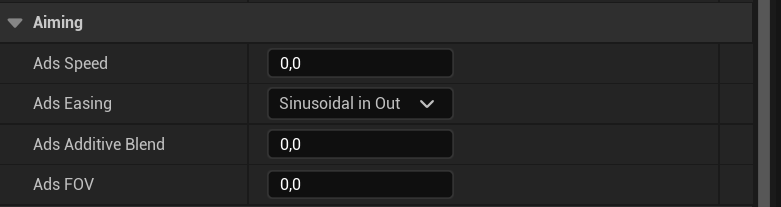
Aiming
{aimingImage}
| Property | Effect |
|---|
AdsSpeed | Speed of the transition into and out of aiming. |
AdsEasing | Shape of that transition. |
AdsAdditiveBlend | Amount of additive motion retained while aiming. |
AdsFOV | Target camera FOV while aiming. Lower values give a narrower view. |
Recoil
RecoilData selects a DA_RecoilData asset. This is where you choose the weapon's recoil profile; edit the selected asset to change the kick, recovery, and shake. See Recoil.
{recoilImage}
Sway
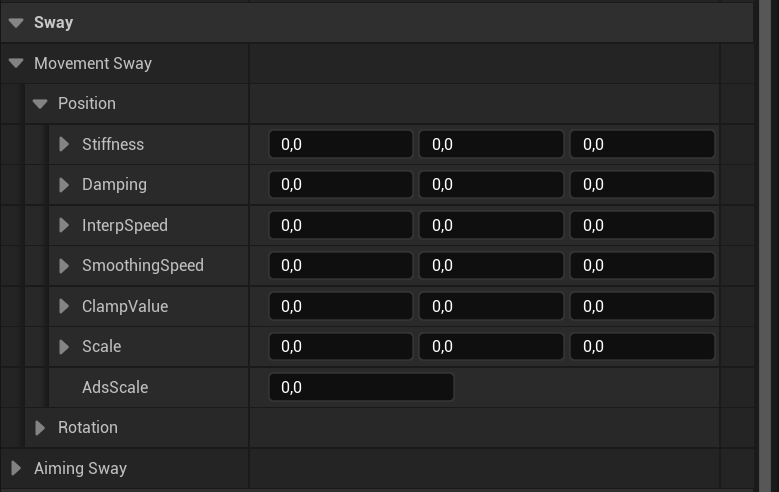
MovementSway responds to character movement. AimingSway responds to look input. Both use F_WeaponSway, with separate Position and Rotation settings.
{swayImage}
Each position/rotation group uses F_WeaponSwayVector:
| Property | Effect |
|---|
Stiffness | Strength of the spring response on each axis. |
Damping | How quickly spring oscillation settles. |
InterpSpeed | How quickly the driving value follows its target. |
SmoothingSpeed | Smooths the resulting response. |
ClampValue | Bounds the input where the sway graph applies clamping. |
Scale | Per-axis strength and direction. A negative value reverses an axis. |
AdsScale | Multiplier while aiming. Reduce it for steadier sights. |
Change one group at a time. Test lateral movement for movement sway and quick mouse turns for aiming sway, then repeat while aiming.
;
export const GameplaySettings = ({generalImage, offsetImage, movementImage, configImage, overrideLink, example}) => <>
Gameplay animation settings
Each item has a settings asset describing how the character should hold it and move with it. The item view references that asset through AnimationSettings. When you equip the item, the view passes it to AC_GameplayAnimation, which updates the character's pose and animation layers.
BP_Gameplay_AnimationSettings defines the shared pose, offset, and movement settings below. Weapon settings inherit these and add aiming, recoil, and sway.
General
{generalImage}
| Property | What it does |
|---|
IdlePose | Supplies the base item-holding pose. |
OverlayClass | Selects the Animation Blueprint implementing the gameplay overlay. |
ProceduralLayerClass | Selects the Animation Blueprint implementing the procedural layer. |
Use layer classes compatible with the character Skeleton. Changing the idle pose changes how the hands hold the item before procedural adjustments.
Viewmodel offset
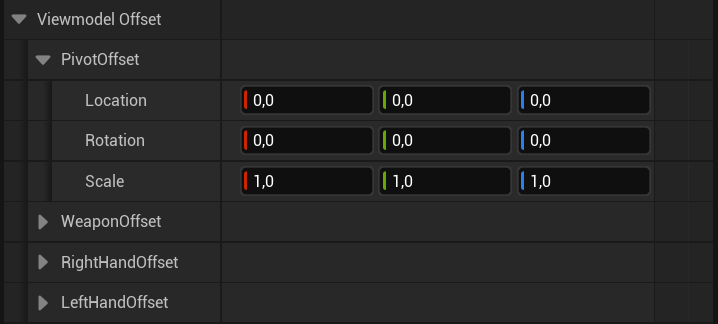
F_ViewmodelOffset groups four transforms. Each contains location, rotation, and scale.
{offsetImage}
| Transform | Use |
|---|
PivotOffset | Adjust the viewmodel pivot used by procedural positioning. |
WeaponOffset | Move or rotate the weapon's resting placement. |
RightHandOffset | Adjust the right-hand target. |
LeftHandOffset | Adjust the left-hand target. |
Start with WeaponOffset when changing framing. Use hand offsets to correct the grip. Preview both hip fire and aiming after changing offsets.
Movement
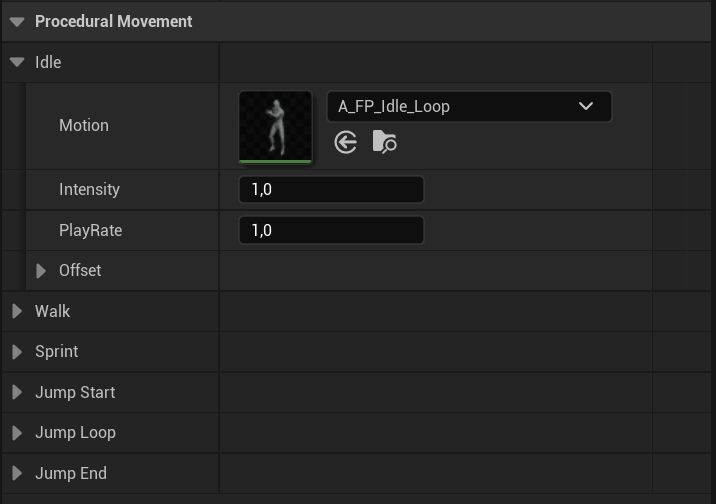
Each state uses F_Procedural_Gait: Idle, Walk, Sprint, JumpStart, JumpLoop, and JumpEnd.
{movementImage}
| Property | Use |
|---|
Motion | Animation Sequence used for that movement state. |
Intensity | Strength of the motion. Lower it for a quieter pose. |
PlayRate | Playback speed. Increase it for a faster motion cycle. |
Offset | Additional transform for the state, such as a different sprint pose. |
The character chooses the movement state; this asset controls how it looks.
Configuration and overrides
Using a different character Skeleton requires retargeted animations and compatible Animation Blueprints. A configuration lists the original assets; an override connects each original to its replacement. Item views can then keep their original references while the animation component selects the versions for your character.
BP_GameplayAnimationConfig collects the source mesh, animations, and classes for this process. It does not control weapon feel; use the per-item settings above for that.
{configImage}
| Config property | Contents |
|---|
CharacterMesh | The source character mesh. |
Animations | Animation assets belonging to the configuration. |
AnimationBlueprints | Animation Blueprint classes belonging to it. |
BP_GameplayAnimationOverride maps that source content to replacements:
| Override property | Contents |
|---|
Config | The configuration being replaced. |
CharacterMesh | Replacement character mesh. |
AnimationOverrides | Original animation → replacement animation. |
AnimBlueprintOverrides | Original class → replacement class. |
Add the override to AC_GameplayAnimation.Overrides. Its resolve functions look up replacement sequences, montages, and Animation Blueprint classes. Follow the Animation setup guide to prepare a custom character.
{example}
;
export const Example = () => SAS_Gepard uses A_FP_Gepard_Idle, ABP_Overlay_SciFi-FPS, and ABP_Procedural_SciFi-FPS. Its idle intensity is 0.5, walk play rate is 1.5, and sprint play rate is 2. These are the Gepard values, not required defaults for every weapon.
;
Open a `SAS_` asset in `Sci-fi_FPS_Pack/Blueprints/Weapons` to tune a weapon's animation. For example, `AC_Gepard` references `SAS_Gepard` through **Animation Settings**. Duplicate the asset and assign your copy there before experimenting.
These assets use `BP_Shooter_AnimationSettings`, which extends the common Gameplay Framework settings. The first group controls poses and movement; the shooter group adds aiming, recoil, and sway.
 } offsetImage={
 } movementImage={
 } configImage={
 } overrideLink="/sci-fi-fps-pack/unreal/tutorials/animation-setup" example={} />
 } recoilImage={
 } swayImage={
 } recoilLink="/sci-fi-fps-pack/unreal/general/recoil" />
## Try an adjustment
Duplicate `SAS_Gepard` and assign it to your `AC_Gepard` child view. Change **Ads FOV** from `80` to `70`, equip the weapon, and aim. You should see a narrower view. Restore the value, then try reducing **Idle > Intensity** to compare idle movement.
} recoilLink="/sci-fi-fps-pack/unreal/general/recoil" />
## Try an adjustment
Duplicate `SAS_Gepard` and assign it to your `AC_Gepard` child view. Change **Ads FOV** from `80` to `70`, equip the weapon, and aim. You should see a narrower view. Restore the value, then try reducing **Idle > Intensity** to compare idle movement.