> ## Documentation Index
> Fetch the complete documentation index at: https://docs.kinemation.xyz/llms.txt
> Use this file to discover all available pages before exploring further.
# Items and weapons
> Set up weapon actors, view components, animation, and the six Sci-Fi weapon variants.
export const Weapons = ({fireImage, shotgunImage}) => <>
What Shooter Core adds
A firearm needs to track ammunition, space out shots, and reload. BP_Shooter_Weapon adds that logic to BP_Gameplay_Item. Its view, AC_WeaponView, extends AC_ItemView with firing, reload, and aiming animation and effects.
When the player holds fire, the weapon decides whether it has ammunition and when the next shot is allowed. For each shot, its view plays the firing montage pair, recoil, sound, and muzzle flash. Releasing fire stops the firing action. This lets you change the sound or animation on the view without changing the weapon's fire-rate logic.
Reload follows the same division: the weapon starts a reload, the view chooses the tactical or empty montage pair, and an animation notify updates ammunition at the insertion frame. Aiming asks the view to blend the sights into place and change camera FOV.
{fireImage}
Weapon settings
Open the weapon Blueprint's Class Defaults to change how it fires.
| Property | What you change |
|---|
FireRate | Shots per minute. |
ActiveFireMode | Current E_FireMode: semi, burst, or auto. |
SupportsFullAuto | Whether the weapon supports automatic firing. |
BurstNum | Number of shots in a burst. |
MaxAmmo | Ammunition capacity. |
ActiveAmmo | Current ammunition. The weapon updates it as you fire and reload. |
MuzzleFlash is the Niagara component used for muzzle effects. RecoilComponent stores the recoil reference; the view also uses this reference for firing presentation.
Weapon view
Select the weapon's view component to change what plays when it fires, aims, or reloads. The view inherits equip and inspect settings from AC_ItemView and adds these properties:
| Property | Use |
|---|
ReloadTacticalMontage / ReloadEmptyMontage | Reload pairs for a weapon with ammunition remaining or an empty weapon. |
FireMontage / FireOutMontage | Firing and firing-end montage pairs. |
BaseMuzzleFlash | Effect data applied to the muzzle Niagara component. |
BaseFireSound | Sound Cue played when firing. |
Inherited AnimationSettings | A shooter settings asset containing ADS, sway, and recoil tuning. |
WeaponSettings is the view's shooter-settings reference. Keep per-weapon tuning in the assigned settings asset.
Firing, aiming, and reload
Character use input calls the weapon's UseItem.
The weapon handles fire timing and ammunition, then invokes view presentation.
OnFire plays the firing presentation. OnStopFiring stops it.
OnAim updates aiming presentation, FOV, and recoil aim state.
OnReload chooses a reload montage pair. The reload notify calls OnReloadAmmo at the authored ammunition-transfer frame.
BPI_Shooter_Weapon exposes reload, fire-mode changes, fire mode, and the aim point. BPI_Shooter_Ammo exposes ammunition, capacity, fire rate, muzzle flash, and the reload-ammo event. BPI_Shooter_Scope supplies an aim point. BPI_WeaponView and BPI_ShotgunView define the presentation calls.
Shotguns
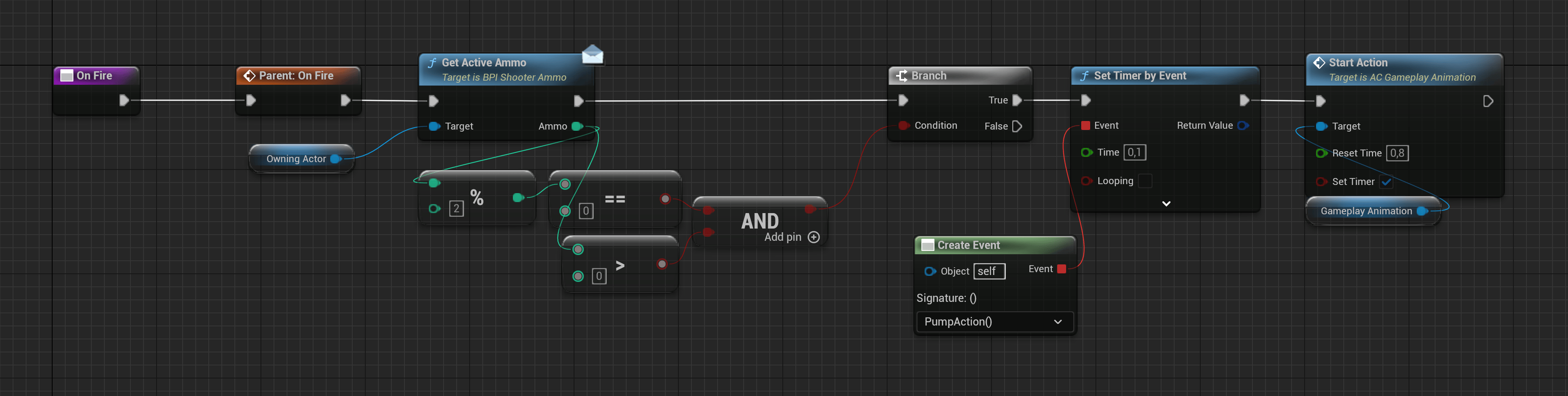
A shotgun reload inserts shells one at a time. BP_Shooter_Shotgun extends the weapon logic for this sequence, while AC_ShotgunView plays reload start, a repeating shell-insertion animation, reload end, and the pump action. Place the reload-ammo notify in the insertion animation so each loop adds ammunition at the right frame.
{shotgunImage}
;
export const Items = ({itemExamples, viewExamples, equipImage, example}) => <>
Every item the character can hold derives from BP_Gameplay_Item. This includes {itemExamples}. The shared base gives them the same actions: equip, put away, use, aim, and inspect. The character can send an action to its equipped item without needing separate input logic for each weapon.
Gameplay and visuals
The item Blueprint implements gameplay: it decides whether an action can start and when it finishes. Its ItemMesh displays the item. A view component handles the animations and effects that accompany those actions.
AC_ItemView is the base view component. It provides the draw, put-away, and inspect animations, plus the animation settings to use while holding the item. Weapon-specific views such as {viewExamples} build on this system.
For example, when you switch items, the character puts away the current item and equips the next one. The new item's view receives OnEquip, plays the draw animation on the character and item, and gives the character animation component its AnimationSettings. That changes how the character holds and moves with the new item.
{equipImage}
{example}
Item animation settings
Select the view component in the item Blueprint to configure these properties.
| View property | Use |
|---|
AnimationSettings | Holding pose, animation layers, and procedural motion while this item is equipped. |
EquipMontage | Character and item animations for drawing the item. |
UnEquipMontage | Character and item animations for putting it away. |
InspectMontage | Character and item animations for inspecting it. |
Each montage entry uses F_CharacterItemMontage, a pair of animations for the character and item. Pairing them keeps the hands and moving weapon parts together during an action. PlayCharacterItemMontage returns the playback length so the gameplay logic can wait for the animation to finish.
Connecting custom gameplay
The built-in character initializes its equipment. If you spawn an item yourself, give it an owning character before calling TryInitialize. Initialization finds that character's mesh, camera, and animation component so the view can play its actions.
Blueprint interfaces provide the common calls between these objects:
BPI_Gameplay_Item lets the character equip, unequip, use, stop using, aim, and inspect the item, and check whether it can aim.BPI_Gameplay_ItemView lets other Blueprints get the item's mesh and view component.BPI_Gameplay_Character lets the item get its owner's character mesh, animation component, camera, and equipped item.
For a new visual action, extend the view's OnEquip, OnUnEquip, OnInspect, or OnUseItem. Keep gameplay decisions on the item Blueprint so replacing an animation does not require changing the character's input.
;
export const Example = () => For example, BP_Gepard uses AC_Gepard, which assigns SAS_Gepard. Copy this arrangement when adding a conventional firearm.
;
BP_Gepard, BP_M97, and BP_TP12} viewExamples={<>AC_Gepard, AC_M97, and AC_TP12} equipImage={ } example={} />
 } shotgunImage={
 } />
## Sci-Fi weapon Blueprints
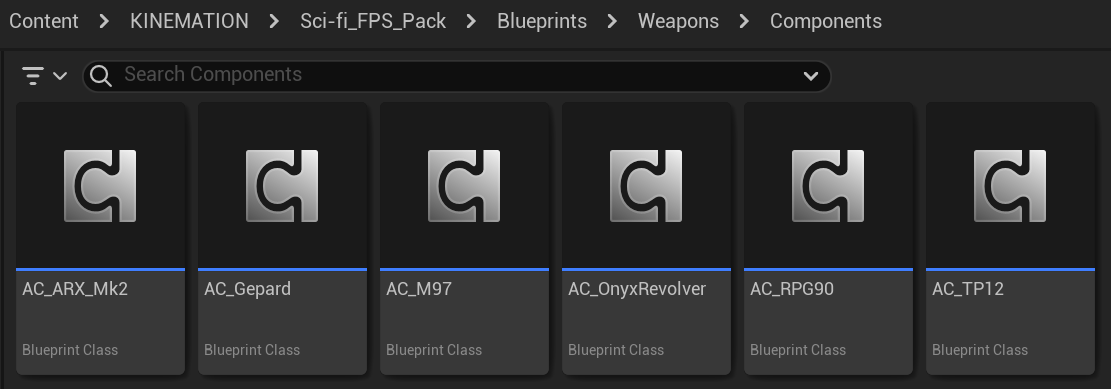
Find these in `/Game/KINEMATION/Sci-fi_FPS_Pack/Blueprints/Weapons`. Their view components are in `Components`.
| Weapon | View | Settings | Use |
| ------------ | ----------------- | ------------ | -------------------------------- |
| `BP_ARX_Mk2` | `AC_ARX_Mk2` | `SAS_ARX` | Charged energy weapon. |
| `BP_Gepard` | `AC_Gepard` | `SAS_Gepard` | Conventional firearm. |
| `BP_M97` | `AC_M97` | `SAS_M97` | Grenade unpin, hold, and throw. |
| `BP_Onyx` | `AC_OnyxRevolver` | `SAS_Onyx` | Revolver reloads. |
| `BP_RPG90` | `AC_RPG90` | `SAS_RPG90` | Launcher and scope presentation. |
| `BP_TP12` | `AC_TP12` | `SAS_TP12` | Shotgun reload and pump. |
} />
## Sci-Fi weapon Blueprints
Find these in `/Game/KINEMATION/Sci-fi_FPS_Pack/Blueprints/Weapons`. Their view components are in `Components`.
| Weapon | View | Settings | Use |
| ------------ | ----------------- | ------------ | -------------------------------- |
| `BP_ARX_Mk2` | `AC_ARX_Mk2` | `SAS_ARX` | Charged energy weapon. |
| `BP_Gepard` | `AC_Gepard` | `SAS_Gepard` | Conventional firearm. |
| `BP_M97` | `AC_M97` | `SAS_M97` | Grenade unpin, hold, and throw. |
| `BP_Onyx` | `AC_OnyxRevolver` | `SAS_Onyx` | Revolver reloads. |
| `BP_RPG90` | `AC_RPG90` | `SAS_RPG90` | Launcher and scope presentation. |
| `BP_TP12` | `AC_TP12` | `SAS_TP12` | Shotgun reload and pump. |
 ### ARX Mk2
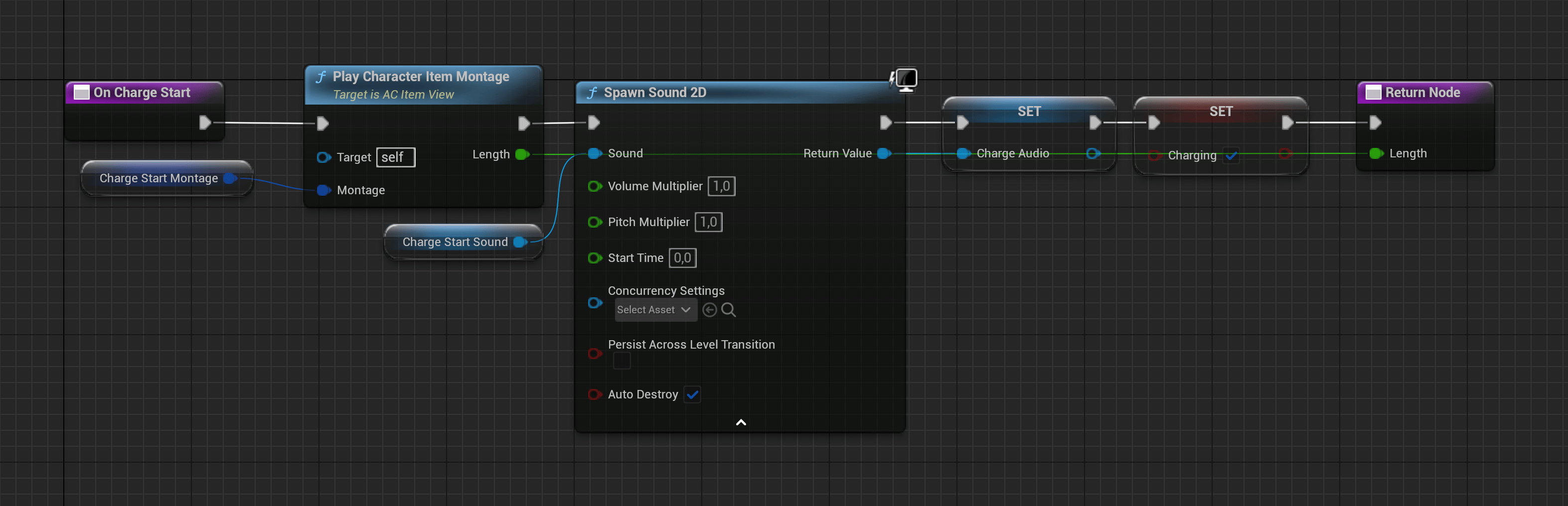
The ARX adds charging before firing. `OnChargeStart` begins the animation, audio, and energy effects. `OnChargeLoop` keeps the held charge visible. `OnFire` ends the charge presentation and plays the shot.
### ARX Mk2
The ARX adds charging before firing. `OnChargeStart` begins the animation, audio, and energy effects. `OnChargeLoop` keeps the held charge visible. `OnFire` ends the charge presentation and plays the shot.
 ### Gepard
Use Gepard as the starting point for a standard firearm. Its child view supplies animation settings, montage pairs, fire sound, and muzzle effects while the base weapon handles firing and ammunition.
### M97
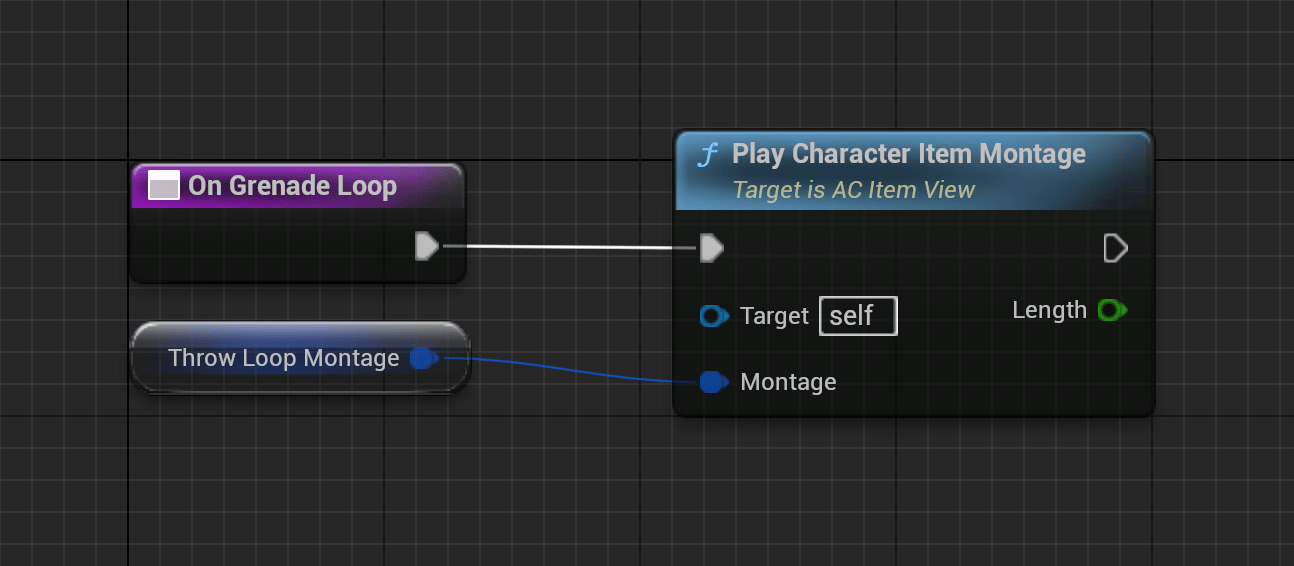
The grenade has unpin, hold, and release stages. `UnpinTime` and `MinUnpinTime` belong to its timing logic. The view plays the draw and use animations, then repeats `OnGrenadeLoop` until release.
### Gepard
Use Gepard as the starting point for a standard firearm. Its child view supplies animation settings, montage pairs, fire sound, and muzzle effects while the base weapon handles firing and ammunition.
### M97
The grenade has unpin, hold, and release stages. `UnpinTime` and `MinUnpinTime` belong to its timing logic. The view plays the draw and use animations, then repeats `OnGrenadeLoop` until release.
 ### Onyx
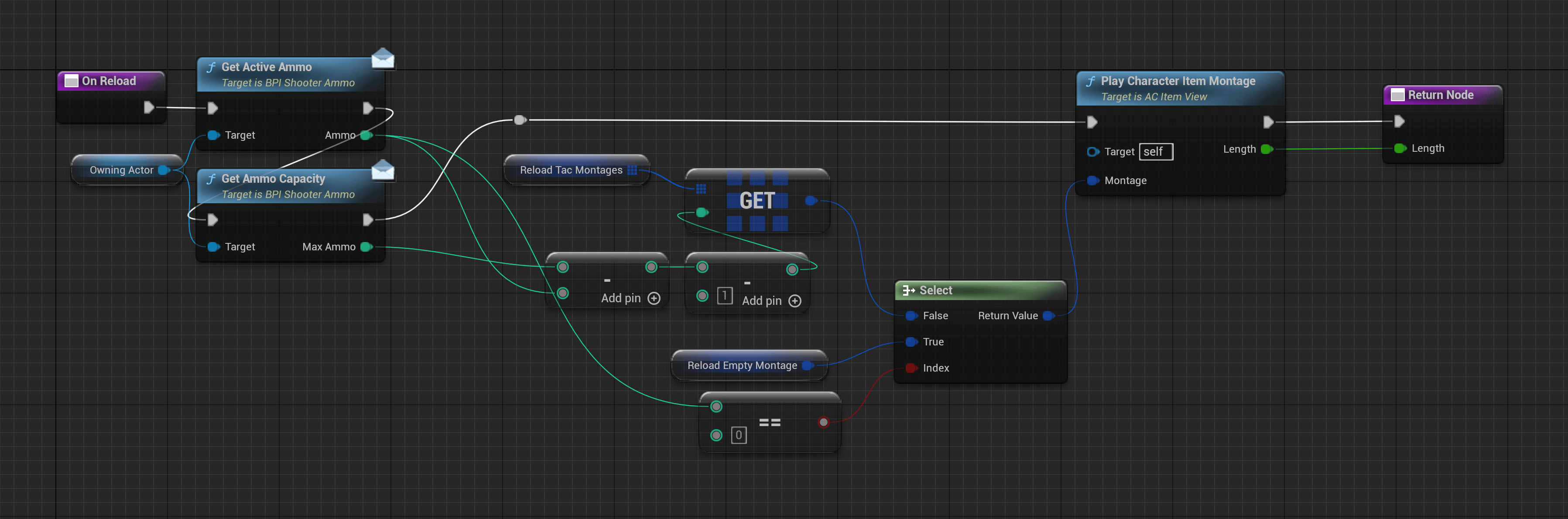
The revolver view chooses the reload animation from the number of missing rounds. When replacing its reloads, keep the weapon and character pairs together and preserve the ammunition notify.
### Onyx
The revolver view chooses the reload animation from the number of missing rounds. When replacing its reloads, keep the weapon and character pairs together and preserve the ammunition notify.
 ### RPG90
The launcher includes scene capture for its scope and backblast presentation. Its aim-point accessor supplies the transform used for sight alignment. Check the scope and rear effect as well as the hands when replacing the launcher mesh.
### TP12
TP12 derives from `BP_Shooter_Shotgun`. Its view plays reload start, shell insertion, reload end, and pump animations. `A_W_TP12_Reload_Loop` uses the reload-ammo notify; `A_W_TP12_Pump` uses the casing notify.
### RPG90
The launcher includes scene capture for its scope and backblast presentation. Its aim-point accessor supplies the transform used for sight alignment. Check the scope and rear effect as well as the hands when replacing the launcher mesh.
### TP12
TP12 derives from `BP_Shooter_Shotgun`. Its view plays reload start, shell insertion, reload end, and pump animations. `A_W_TP12_Reload_Loop` uses the reload-ammo notify; `A_W_TP12_Pump` uses the casing notify.
 See [Create a weapon](/sci-fi-fps-pack/unreal/tutorials/create-a-weapon), [Animation settings](/sci-fi-fps-pack/unreal/general/animation-settings), and [Recoil](/sci-fi-fps-pack/unreal/general/recoil).