> ## Documentation Index
> Fetch the complete documentation index at: https://docs.kinemation.xyz/llms.txt
> Use this file to discover all available pages before exploring further.
# Animation override
> Retarget Sci-Fi FPS Pack animations to a custom Unreal Engine character and apply them through an animation override.
export const productName_0 = "Sci-Fi FPS Pack"
export const intro_0 = "Use an animation override to keep the source Sci-Fi FPS Pack assets unchanged while you retarget their character and item animations to a custom mesh."
export const targetMeshName_0 = "SKM_Operator"
export const overrideAssetName_0 = "DA_SKM_Operator_Override"
export const createOverrideImageCaption_0 = "Create an animation override from the custom skeletal mesh."
export const createOverrideImage_0 =
 export const targetConfigName_0 = "DA_SciFi-FPS_Config"
export const targetConfigImageCaption_0 = "Assign the target configuration and character mesh to the override asset."
export const targetConfigImage_0 =
export const targetConfigName_0 = "DA_SciFi-FPS_Config"
export const targetConfigImageCaption_0 = "Assign the target configuration and character mesh to the override asset."
export const targetConfigImage_0 =
 export const retargetActionImageCaption_0 = "Open Retarget Animations for the created override asset."
export const retargetActionImage_0 =
export const retargetActionImageCaption_0 = "Open Retarget Animations for the created override asset."
export const retargetActionImage_0 =
 export const ikRetargeterName_0 = "IKRetargeter_UE5_UE5"
export const retargetAssetSummary_0 = "54 animation assets and 4 Animation Blueprints"
export const retargeterImageCaption_0 = "Choose the UE5-to-UE5 IK Retargeter in the Override Retarget window."
export const retargeterImage_0 =
export const ikRetargeterName_0 = "IKRetargeter_UE5_UE5"
export const retargetAssetSummary_0 = "54 animation assets and 4 Animation Blueprints"
export const retargeterImageCaption_0 = "Choose the UE5-to-UE5 IK Retargeter in the Override Retarget window."
export const retargeterImage_0 =
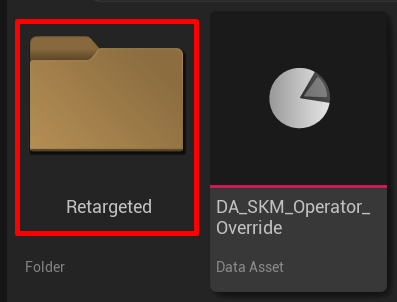
 export const resultFolderName_0 = "Retargeted"
export const resultFolderImageCaption_0 = "Choose the project-owned folder for the generated retargeted assets."
export const resultFolderImage_0 =
export const resultFolderName_0 = "Retargeted"
export const resultFolderImageCaption_0 = "Choose the project-owned folder for the generated retargeted assets."
export const resultFolderImage_0 =
 export const characterBlueprintName_0 = "BP_SciFi_Character"
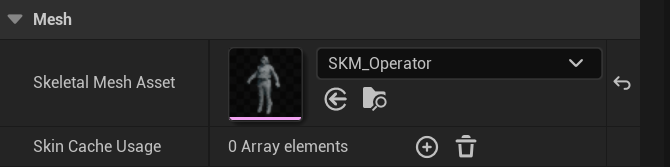
export const finalMeshImageCaption_0 = "Set the target mesh on the character Blueprint Mesh component."
export const finalMeshImage_0 =
export const characterBlueprintName_0 = "BP_SciFi_Character"
export const finalMeshImageCaption_0 = "Set the target mesh on the character Blueprint Mesh component."
export const finalMeshImage_0 =
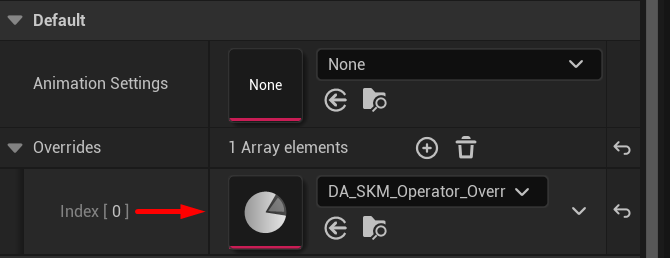
 export const finalStateImageCaption_0 = "Final state with the animation override added under the Gameplay Animation component Overrides list."
export const finalStateImage_0 =
export const finalStateImageCaption_0 = "Final state with the animation override added under the Gameplay Animation component Overrides list."
export const finalStateImage_0 =
 export const expectedResult_0 = "BP_ProjectPlayer uses the target mesh, AC_GameplayAnimation contains the animation override, and the override maps route playback to the retargeted assets without modifying the original Sci-Fi FPS Pack content."
## Before you begin
* Complete [Character setup](/sci-fi-fps-pack/unreal/get-started/character-setup).
* Create or duplicate a project-owned animation configuration.
* Prepare a custom skeletal mesh and a compatible UE5 IK Retargeter.
* Create a project-owned folder for the retargeted assets.
## Create an animation override for {productName_0}
{intro_0}
In the Content Browser, select
export const expectedResult_0 = "BP_ProjectPlayer uses the target mesh, AC_GameplayAnimation contains the animation override, and the override maps route playback to the retargeted assets without modifying the original Sci-Fi FPS Pack content."
## Before you begin
* Complete [Character setup](/sci-fi-fps-pack/unreal/get-started/character-setup).
* Create or duplicate a project-owned animation configuration.
* Prepare a custom skeletal mesh and a compatible UE5 IK Retargeter.
* Create a project-owned folder for the retargeted assets.
## Create an animation override for {productName_0}
{intro_0}
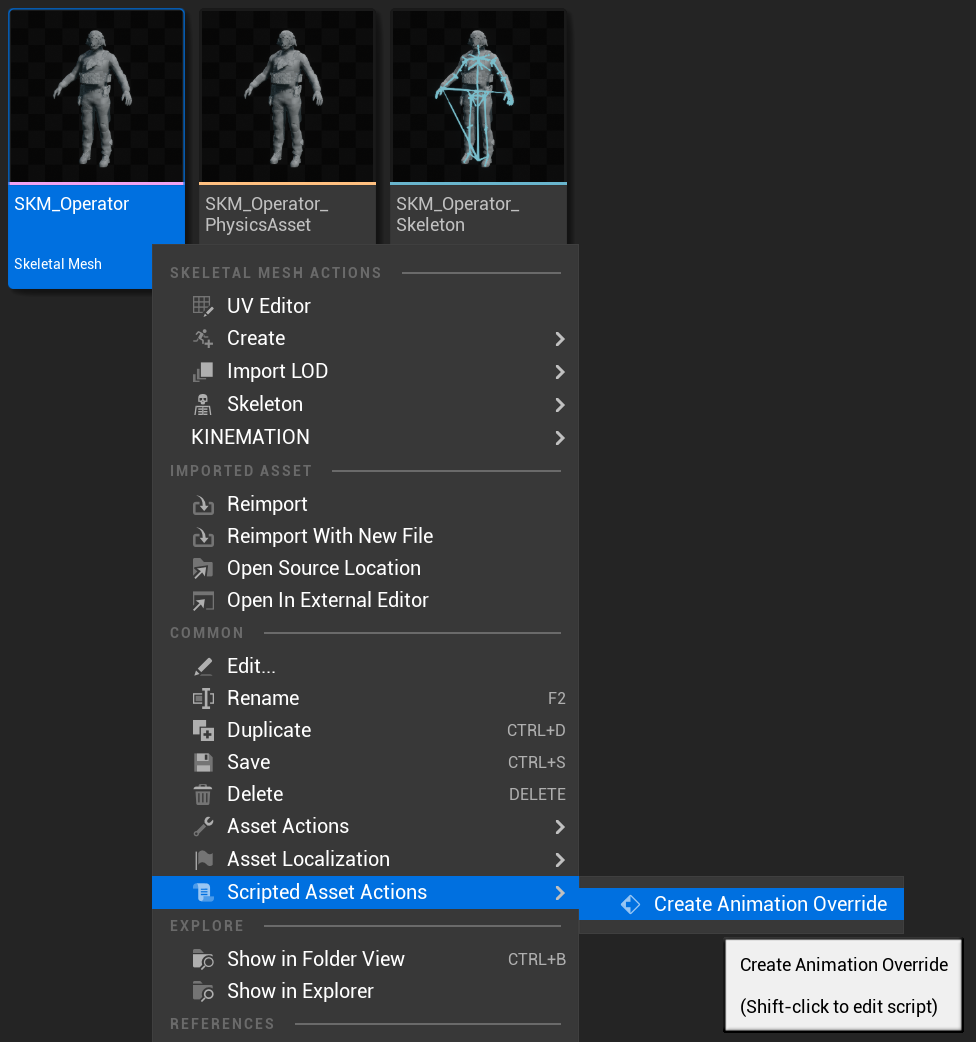
In the Content Browser, select {targetMeshName_0}. Right-click it and choose **Scripted Asset Actions > Create Animation Override**. Unreal creates {overrideAssetName_0} as a data asset.
{createOverrideImage_0}
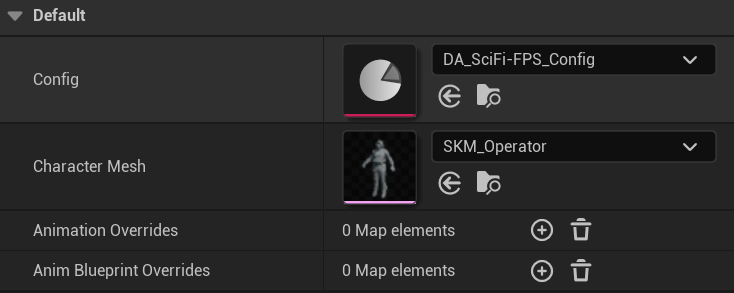
Select {overrideAssetName_0}. Set **Config** to {targetConfigName_0} and confirm that **Character Mesh** references {targetMeshName_0}.
{targetConfigImage_0}
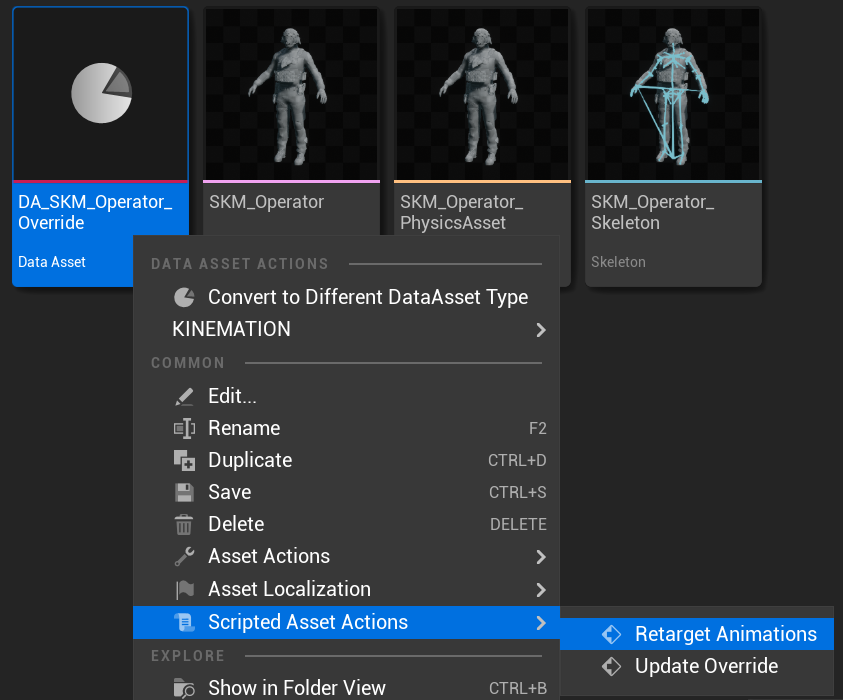
Right-click {overrideAssetName_0} and choose **Scripted Asset Actions > Retarget Animations**.
{retargetActionImage_0}
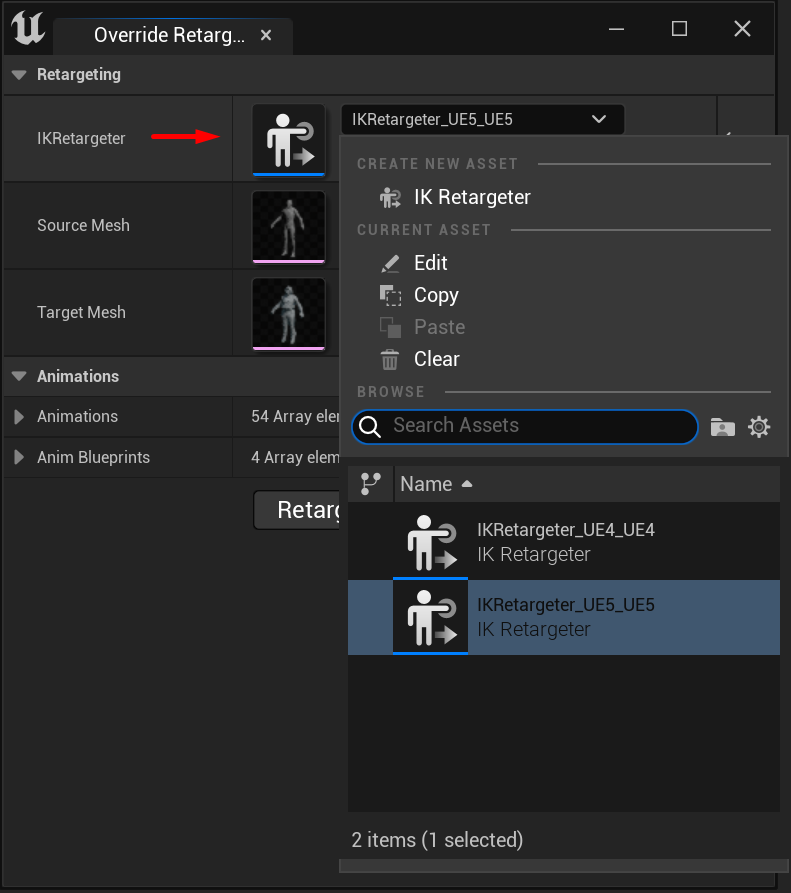
In the **Retargeting** section, set **IKRetargeter** to {ikRetargeterName_0}. Confirm that **Source Mesh** and **Target Mesh** resolve to the intended skeletons. Review {retargetAssetSummary_0} under **Animations** and **Anim Blueprints**, then click **Retarget**.
{retargeterImage_0}
Choose the project-owned {resultFolderName_0} folder when the retarget window asks where to store the generated assets. Keep generated files outside the imported pack content.
{resultFolderImage_0}
After retargeting completes, select {overrideAssetName_0} again and run **Scripted Asset Actions > Update Override**. This refreshes the **Animation Overrides** and **Anim Blueprint Overrides** maps with the generated replacements.
Open {characterBlueprintName_0}. Select its **Mesh** component and set **Skeletal Mesh Asset** to {targetMeshName_0}.
{finalMeshImage_0}
Then select the **Gameplay Animation** component (AC\_GameplayAnimation) and add {overrideAssetName_0} under **Overrides**. Save the Blueprint. The override list should contain the new asset as shown in the final state.
{finalStateImage_0}
{expectedResult_0}
## Next step
Continue to [Project integration](/sci-fi-fps-pack/unreal/tutorials/project-integration).