> ## Documentation Index
> Fetch the complete documentation index at: https://docs.kinemation.xyz/llms.txt
> Use this file to discover all available pages before exploring further.
# 🎮Input System
> In this section you will learn about the property system.
## Overview
The **FPS Animation Framework** introduces a standalone input property system. The idea is that you can define custom properties in the **Input Config** asset and then use them in runtime:
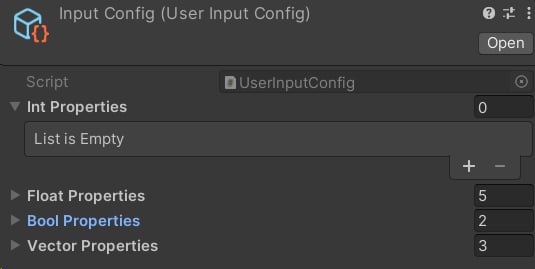 Once the game starts, the **User Input Controller** will register all the properties from the **Input Config**, so they can be modified in runtime. So far only 4 types are supported:
* Int
* Float
* Bool
* Vector4
**Tip:** floats have an interpolation feature. Set the interpolation speed to something higher than 0, and the system will automatically interpolate the value in realtime. This is a useful function for weights, when you want to smoothly disable/enable some animation features.
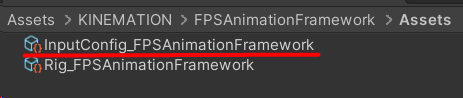
The framework provides a default **Input Config**, which you can use as a starting point:
Once the game starts, the **User Input Controller** will register all the properties from the **Input Config**, so they can be modified in runtime. So far only 4 types are supported:
* Int
* Float
* Bool
* Vector4
**Tip:** floats have an interpolation feature. Set the interpolation speed to something higher than 0, and the system will automatically interpolate the value in realtime. This is a useful function for weights, when you want to smoothly disable/enable some animation features.
The framework provides a default **Input Config**, which you can use as a starting point:
 To get or set values in runtime, you can use these methods:
While it is possible to get/set a property by name, it is recommended to use the property index instead. You can get the property index in the **Start()** event like this:
Now let's learn what parameters control what in the default Input Config.
## Default Properties
### Float properties
* **PlayablesWeight** - controls the weight of the custom animations.
* **StabilizationWeight** - controls the stability of the upper body. If set to 1 - fully stabilized, if 0 - overidden locally, stability is not guaranteed.
* **LeanInput** - defines the lean angle. Used in the Look Layer.
* **Aiming Weight** - controls the weight of the ADS. It is modified in the Ads Layer, and used in the View Layer.
* **TurnOffset** - controls the character rotation offset to counter player rotation (it is used sed for turning in place).
### Bool properties
* **IsAiming** - defines the current state of aiming.
* **UseFreeAim** - whether we use the dead-zone mechanic or not. Only used in the Sway Layer.-
### Vector4 properties
* **MouseInput** - defines accumulative mouse look input. X is the yaw rotation, while Y is the pitch rotation. Z and W components are not used. Primarily used by the Look Layer.
* **MouseDeltaInput** - defines the delta mouse look input. X is the yaw delta rotation, while Y is the pitch delta rotation. Only used by the Sway Layer.
* **MoveInput** - defines the current movement input. X represents the horizontal movement, and Y - is horizontal. Used by the Sway Layer.
To get or set values in runtime, you can use these methods:
While it is possible to get/set a property by name, it is recommended to use the property index instead. You can get the property index in the **Start()** event like this:
Now let's learn what parameters control what in the default Input Config.
## Default Properties
### Float properties
* **PlayablesWeight** - controls the weight of the custom animations.
* **StabilizationWeight** - controls the stability of the upper body. If set to 1 - fully stabilized, if 0 - overidden locally, stability is not guaranteed.
* **LeanInput** - defines the lean angle. Used in the Look Layer.
* **Aiming Weight** - controls the weight of the ADS. It is modified in the Ads Layer, and used in the View Layer.
* **TurnOffset** - controls the character rotation offset to counter player rotation (it is used sed for turning in place).
### Bool properties
* **IsAiming** - defines the current state of aiming.
* **UseFreeAim** - whether we use the dead-zone mechanic or not. Only used in the Sway Layer.-
### Vector4 properties
* **MouseInput** - defines accumulative mouse look input. X is the yaw rotation, while Y is the pitch rotation. Z and W components are not used. Primarily used by the Look Layer.
* **MouseDeltaInput** - defines the delta mouse look input. X is the yaw delta rotation, while Y is the pitch delta rotation. Only used by the Sway Layer.
* **MoveInput** - defines the current movement input. X represents the horizontal movement, and Y - is horizontal. Used by the Sway Layer.