> ## Documentation Index
> Fetch the complete documentation index at: https://docs.kinemation.xyz/llms.txt
> Use this file to discover all available pages before exploring further.
# 📹Camera
> In this section we will cover how camera animations are applied in the pack.
## Character Clips
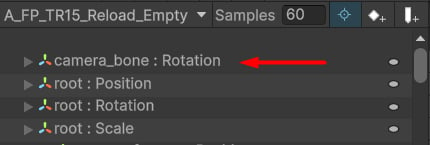
All camera animations are baked into character Animation Clips using the `camera_bone`:
 **Tip**: The reason why camera motion is baked into the character animation is quite simple - to sync player and camera motions. So whenever a character clip is played, it will also animate the camera automatically.
This bone only contains rotation, which is later applied to the camera rotation using the `FPSCameraAnimator` script.
## FPS Camera Animator
**Tip**: The reason why camera motion is baked into the character animation is quite simple - to sync player and camera motions. So whenever a character clip is played, it will also animate the camera automatically.
This bone only contains rotation, which is later applied to the camera rotation using the `FPSCameraAnimator` script.
## FPS Camera Animator
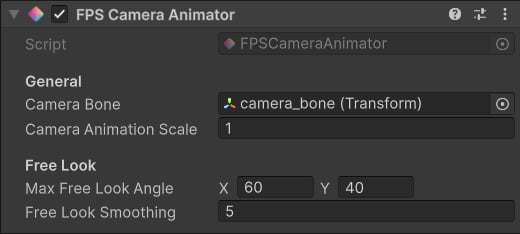 This component is added directly to the Camera Game Object, and it's used to:
1. Apply rotation and inputs.
2. Apply camera shakes.
3. Apply camera animations.
4. Apply free look
Let's break down the proprties of this component:
* **Camera Bone**: this transform will be used to locally apply animation to the camera.
* **Camera Animation Scale**: this value will influence the camera motion.
* **Max Free Look Angle**: max yaw and pitch free look angle in degrees.
* **Free Look Smoothing**: interpolation speed when free look is active.
### Camera Shakes
These are primarily used to animate camera when firing. To create a Camera Shake, right-click and select `KINEMATION/Shooter Core/Camera Shake`:
This component is added directly to the Camera Game Object, and it's used to:
1. Apply rotation and inputs.
2. Apply camera shakes.
3. Apply camera animations.
4. Apply free look
Let's break down the proprties of this component:
* **Camera Bone**: this transform will be used to locally apply animation to the camera.
* **Camera Animation Scale**: this value will influence the camera motion.
* **Max Free Look Angle**: max yaw and pitch free look angle in degrees.
* **Free Look Smoothing**: interpolation speed when free look is active.
### Camera Shakes
These are primarily used to animate camera when firing. To create a Camera Shake, right-click and select `KINEMATION/Shooter Core/Camera Shake`:
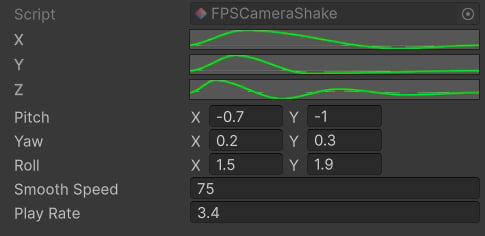 * **X**/**Y**/**Z**: Animation Curves that animate a specific rotation axis.
* **Pitch**/**Yaw**/**Roll**: min and max pitch/yaw/roll value for this shake; when a shake is played, a random value will be selected from this range and multiplied by the curve animation.
* **Smooth Speed**: interpolation speed; if zero, no smoothing will be applied.
* **Play Rate**: playback speed multiplier.
The `Camera Shake` Scriptable Object is used by the `FPS Camera Animator` script. Shakes are played using this method:
### Free Look
This feature allows the player to view the surroundings by only rotating the camera. The code snippet below is an example of how you can activate the free look:
* The `ToggleFreeLook` method activates and deactivates the feature.
* The `AddFreeLookInput` method adds free look rotation to the camera, which is separated from the main input.
* `UseFreeLook` property helps you check if the free look is active or not.
* **X**/**Y**/**Z**: Animation Curves that animate a specific rotation axis.
* **Pitch**/**Yaw**/**Roll**: min and max pitch/yaw/roll value for this shake; when a shake is played, a random value will be selected from this range and multiplied by the curve animation.
* **Smooth Speed**: interpolation speed; if zero, no smoothing will be applied.
* **Play Rate**: playback speed multiplier.
The `Camera Shake` Scriptable Object is used by the `FPS Camera Animator` script. Shakes are played using this method:
### Free Look
This feature allows the player to view the surroundings by only rotating the camera. The code snippet below is an example of how you can activate the free look:
* The `ToggleFreeLook` method activates and deactivates the feature.
* The `AddFreeLookInput` method adds free look rotation to the camera, which is separated from the main input.
* `UseFreeLook` property helps you check if the free look is active or not.