
Importing Content
To make Tactical Shooter Pack weapons work with the FPS Animation Pack, make sure to import the animations, models and sounds into your project: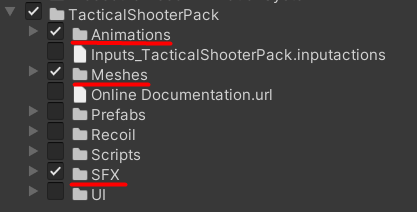
Import this content only.
Animator Controllers
Next, we need to create an Override Animator Controller for our character and weapon. To do this, right-click and select: Create/Animator Override Controller: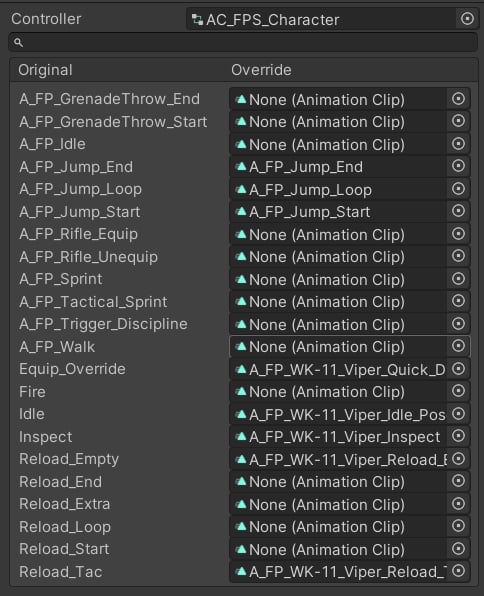
Character controller example.
- Jump Start, Loop, End
- Equip Override
- Idle
- Reload Empty, Tac
- Reload Start, Loop End (for the shotgun)
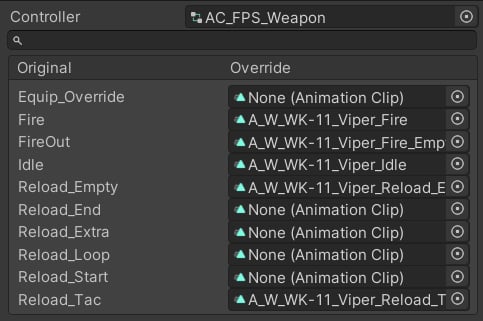
Weapon controller example.
- Fire, Fire Out (Empty)
- Idle
- Reload Empty, Reload Tac
- Reload Start, Loop, End
Weapon Settings
FPS Animation Pack relies on Weapon Settings to store weapon-specific properties. To create a new asset, right-click and select Create/KINEMATION/FPS Animation Pack/Weapon Settings. Once created, make sure to assign the previously created Character Controller:
Select the controller here.
Weapon Event Sounds
FPS Animation Pack plays weapon-specific sounds (e.g., reloads) from the Weapon Event Sounds list: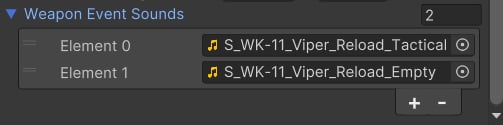
Add weapon-specific sounds here.
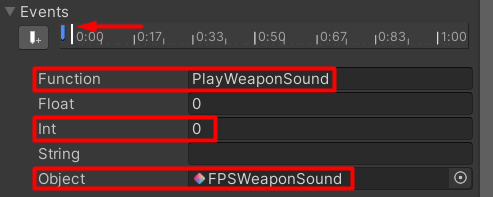
Play Weapon Sound notify.
Weapon Prefab
Next, we need to create a new prefab for our weapon. Add the FPSWeapon component to it: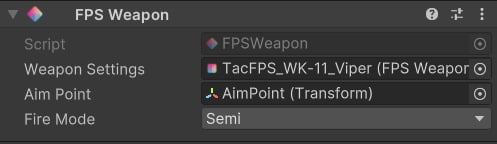
FPS Weapon component.
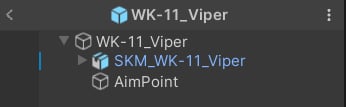
Aim Point is an empty Game Object.
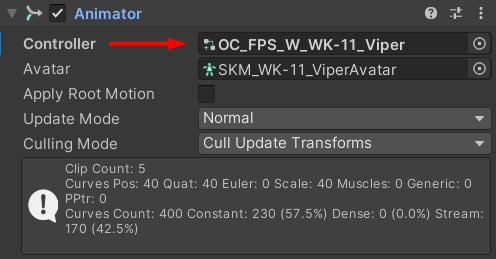
Assign the previously created controller.
Character Prefab
Duplicate theFPSPlayer prefab from the FPS Animation Pack, and add the Operator model from the Tactical Shooter Pack to it:
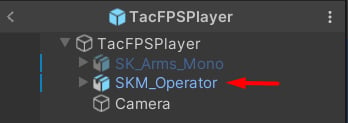
New player prefab.
Animator
In the Animator component, make sure to set the Avatar to “None”, as Operator model doesn’t have an Avatar by default.FPS Player
Now we need to create Player Settings - this asset contains player-related properties: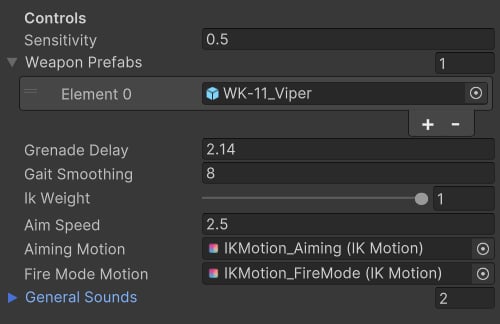
You only need to add weapon prefabs here.
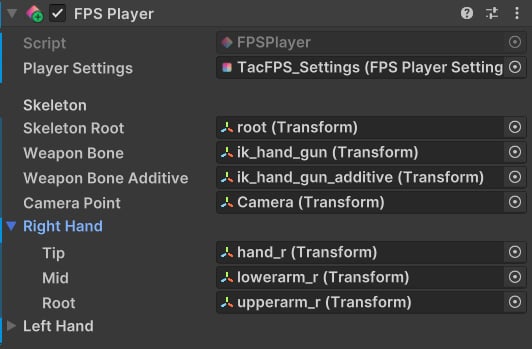
Make sure to use bones from the Operator model.
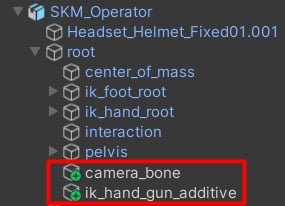
Custom bones.
Camera Animations
To make the camera animations work, add thecamera_bone empty Game Object similarly to the image above. Then, go to the Camera component and update the camera_bone reference:

Use the camera_bone from the Operator model!
Hiding Mesh Parts
The Operator model is a full-body character, but it’s possible to hide some of it meshes to better fit the first-person view. To do this, simply select the meshes you don’t want and disable their Skinned Mesh Renderer:
How to hide character parts.