
Weapon Bone
To fully integrate tactical animations with your animator controller, it’s essential to add a Tactical Weapon Bone component to your character: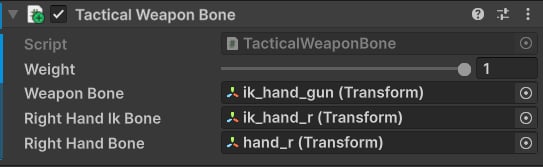
Add this component to your character model (same as Animator).
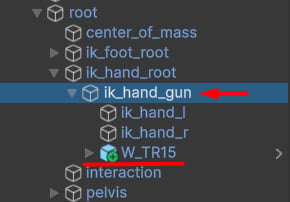
Attach weapons to this bone.
Avatar Mask
Now we need to create an Avatar Mask that will affect our upper body and IK bones. Right-click and choose Create ▸Animation ▸ Avatar Mask. Then, choose your avatar and select the upper body bones: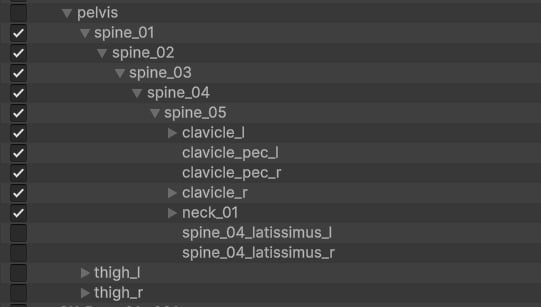
Select spine, neck and arm bones.

Select these bones.
Tip: Weapon bone and hand IKs are important for correctly positioning the weapon.
Animator Controller
Create a new or use an existing layer for playing actions (e.g., reloads, mag checks, inspects, etc.), and assign the new upper body mask: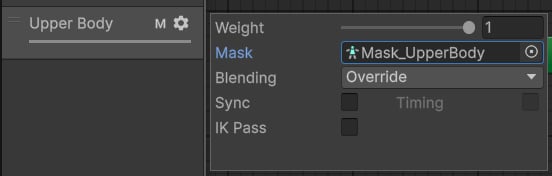
Assign the new mask here.
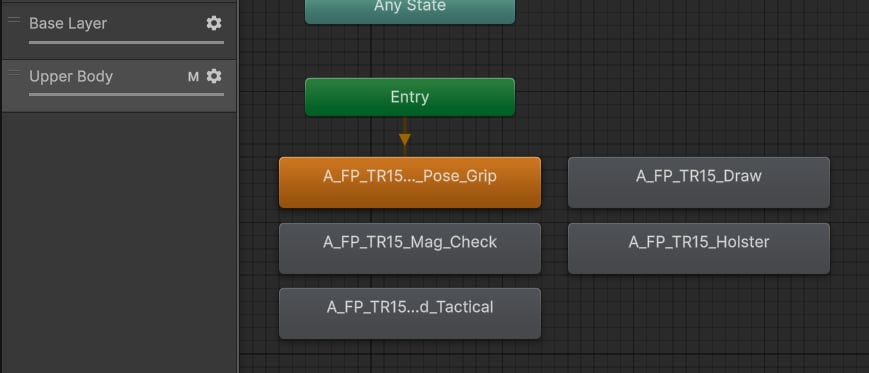
Add clips, blend trees and transitions to fit the needs of your gameplay.
Spine Stabilization
By default, the lower-body locomotion will always affect the upper body. This makes the first-person view unstable when moving around.
To fix this issue, go to the Tactical Procedural Animation component and set the
Spine Stabilization to 1:
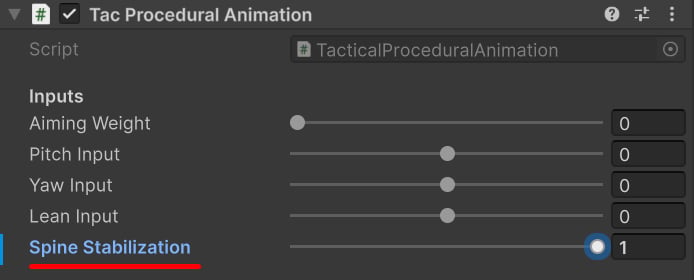
Tip: This field is public, meaning you can update it dynamically in code.