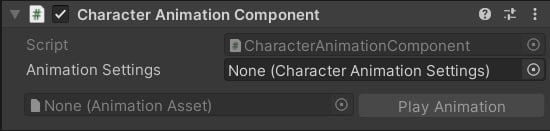
CharacterAnimationComponent is the single MonoBehaviour you interact with for the vast majority of CAS tasks. Add it to your character prefab and it takes care of driving the Layered Blending component, the Procedural Animation component, and all Animation Slots. Everything else in CAS feeds into or out of this component.
What the Component Does
CharacterAnimationComponent is responsible for three things:
- Orchestrating blending and procedural updates. Each frame it updates the Layered Blending and Procedural Animation components so they apply the correct weights and modifiers to the current pose.
- Pose blending. When you switch between animation profiles at runtime, the component captures the current pose and smoothly blends from it into the new one, preventing visual pops.
- Animation Slots. It exposes
PlayAnimationandStopAnimationso you can trigger one-off clips (reloads, interactions, hit reactions) at runtime through Animation Assets.
Character Animation Settings
CharacterAnimationComponent reads its configuration from a Character Animation Settings asset — a ScriptableObject that acts as a profile for a specific gameplay situation, weapon, or item.
1
Create the asset
In the Project window, right-click and select Create ▸ KINEMATION ▸ CAS ▸ CAS Settings.
2
Assign it to the component
Drag the new asset into the Settings field on the
CharacterAnimationComponent in the Inspector.3
Configure the asset
Select the asset and fill in its properties as described below.
Properties
Enum
The easing curve used when blending between the old and new settings when you call
UpdateAnimationSettings. A smooth ease-in/out is appropriate for most weapon swaps; linear works for rapid context changes.float
Seconds the component takes to blend the new overlay in after
UpdateAnimationSettings is called.float
Seconds the component takes to blend the previous overlay out after
UpdateAnimationSettings is called.AnimationClip
required
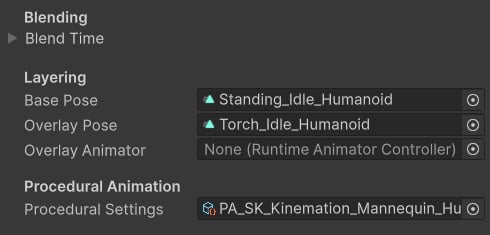
The standing idle animation for your character. CAS subtracts this pose from the Animator output before adding the Overlay, which is what allows smooth upper-body weapon poses while locomotion continues underneath. Always assign a clip here — Layered Blending depends on it.
AnimationClip
A single animation clip that defines the weapon or item pose. Use this for simple cases where no state machine is needed. Assign either this field or Overlay Animator — not both.
RuntimeAnimatorController
An Animator Controller that provides the Overlay pose with full state machine support — transitions, blend trees, and parameters. Use this when you need to blend between multiple overlay states, such as idle, aiming, and sprinting versions of a weapon pose. Access it at runtime via
LayeredBlendingComponent.OverlayAnimator.ProceduralAnimationSettings
A Procedural Animation Settings asset containing the list of Animation Modifiers to run after blending. Swap this at runtime (via
UpdateAnimationSettings) to apply a different modifier stack for each weapon or gameplay state.Updating Settings at Runtime
CallUpdateAnimationSettings to switch the active profile. The component blends from the current pose into the new settings over the time defined on the new asset. This is the correct way to handle equipping a weapon, picking up an item, or entering a new gameplay state.
API Signature
Example
UpdateAnimationSettings automatically calls RequestPoseBlending internally, so you do not need to call it yourself when swapping settings.Pose Blending
RequestPoseBlending lets you manually trigger a blend from the current frozen pose to the live animated pose. You typically do not need to call this directly — UpdateAnimationSettings does it for you — but it is useful in one specific scenario: switching the main Animator Controller directly.
Unity does not natively smooth transitions when you assign a new Animator Controller at runtime. The pose can jump abruptly. Calling RequestPoseBlending immediately after swapping the Animator Controller caches the current pose on the animation thread and blends smoothly from it into the new controller’s output starting the next frame.
API Signature
Example
Playing and Stopping Animations
CharacterAnimationComponent exposes two methods for playing Animation Assets at runtime and one for stopping them. These are the methods you call from gameplay code to trigger reloads, hit reactions, interaction clips, and any other one-off or looping animations.
API Signatures
PlayAnimationreturnstrueif the animation started successfully andfalseif it was rejected (for example, if the same asset is already playing).startTimesets the normalised start position in the clip (0= beginning,1= end).- Pass an
AnimationMixerEvent[]to the second overload to receive time-based callbacks during playback. See Animation Asset — Custom Events for the fullAnimationMixerEventAPI. StopAnimationaccepts an optionalblendOutTimethat overrides the blend-out time set on the asset.