
Character
Add your character to the scene, right-click on it and select “KINEMATION/Setup CAS”:
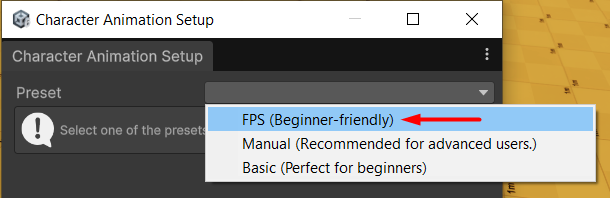
FPS preset.
Note: It will only show up if the demo content is installed.
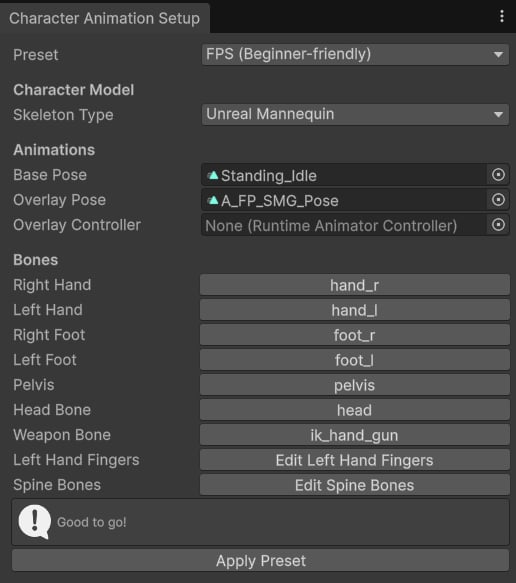
FPS Preset.
1. Skeleton Type
Select the type of your character model skeleton: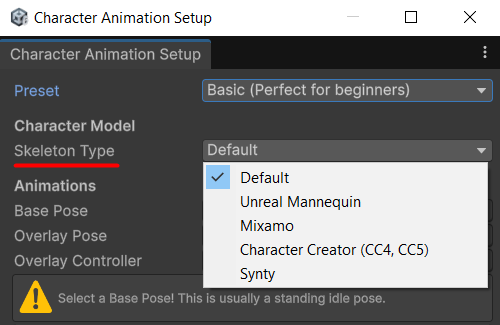
Select your skeleton type.
- Unreal Mannequin (UE4&UE5).
- Mixamo
- Character Creator (CC4, CC5)
- Synty
2. Animations
Next, we need to pick Animation Clips for our character: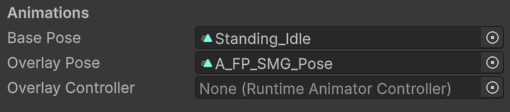
Assign Animation Clips.
3. Bones
Finally, we need to assign bone references, so CAS can create Procedural Animation Modifiers: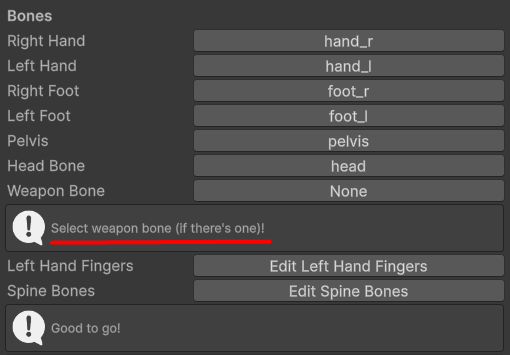
Assign bone references.
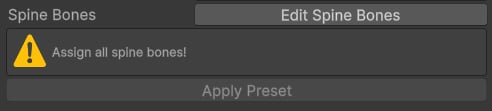
Warning example.
4. Assign Animator
If your character is Generic, you will need to assign an Animator Controller: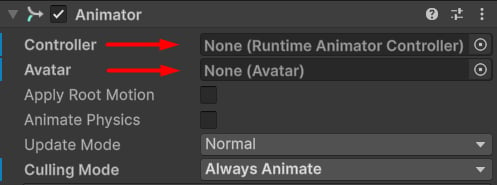
Assign your Animator Controller here.
Tip: Ensure that the selected animations and Animator are compatible with your skeleton! Generics will only work with Generic animations, and Humanoids - with Humanoid clips.