CAS State Behaviours are Unity StateMachineBehaviour components that you attach directly to states in your Animator Controller. They let the Animator drive CAS-specific events — such as smoothly transitioning a float parameter or triggering a procedural step — at the exact moment a state is entered or exited, without needing any code in your character controller. CAS provides two built-in state behaviours: Set Float and Play Step.

Set Float

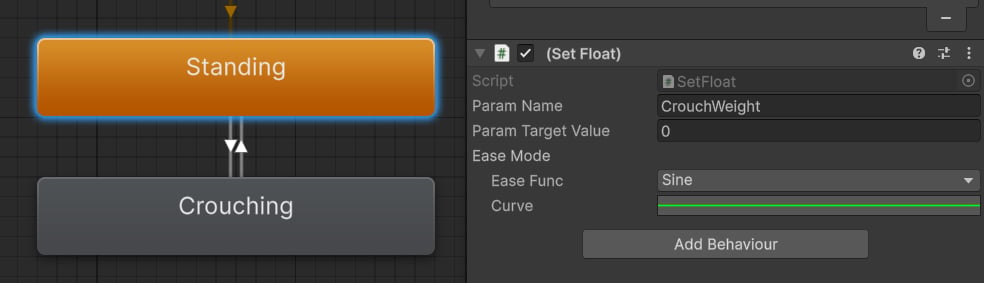
Set Float smoothly transitions an Animator float parameter to a target value when a state is entered or exited. It respects the duration of the Animator transition — if the transition takes 0.25 seconds, the float will blend from its current value to the target value over those same 0.25 seconds.

When to Use It

  • Blend a Weight Override float property in or out when a locomotion state is entered (for example, enabling a lean modifier as the character breaks into a run).
  • Smoothly set an IK weight to zero when the character enters an airborne state, preventing feet from snapping.
  • Drive a look-modifier pitch offset to a specific value when a crouching state begins.

Setup

1

Open your Animator Controller

In Unity, open the Animator Controller asset and select the state where you want the float change to occur.
2

Add the Set Float behaviour

In the Inspector, click Add Behaviour and select Set Float from the CAS category.
3

Configure the behaviour

Set the Parameter Name to the exact name of the float parameter in your Animator Controller, enter the Target Value you want the parameter to reach, and choose whether to trigger on Enter or Exit (or both).
Because Set Float uses the transition duration as the blend time, transitions with longer durations produce smoother float changes. Pair short transitions with a small target value delta for a snappy response, or use a longer transition for a gradual crossfade.

Play Step

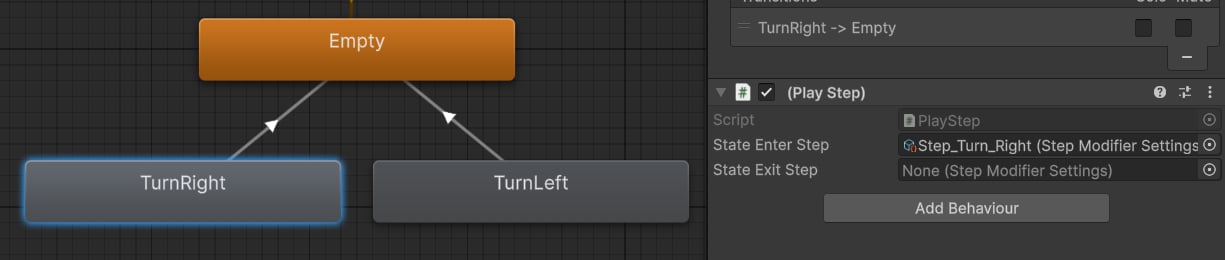
Play Step triggers a procedural step from the Step Modifier when the attached Animator state is entered or exited. It eliminates foot sliding on state transitions — for example, when moving from a standing idle into a crouching idle, or when ending a turn-in-place animation — without requiring any manual step playback calls in code.

When to Use It

  • Trigger a step when entering a crouching state so the feet re-plant naturally under the new stance.
  • Trigger a step when exiting a turning animation so the feet settle after the turn completes.
  • Fire a step at the end of a climbing animation so the character’s feet do not slide to the final pose.

Setup

1

Select the target state

Open your Animator Controller and select the state that should trigger the step — for example, a Crouch entry state or a Turn Right state.
2

Add the Play Step behaviour

In the Inspector, click Add Behaviour and select Play Step.
3

Assign the Step Modifier settings

Drag the Step Modifier Settings asset you want to play into the behaviour’s Step Settings field. CAS includes example step presets under KINEMATION/CharacterAnimationSystem/Examples/Steps/.
4

Choose the trigger moment

Set whether the step plays on State Enter or State Exit (or both) depending on when foot sliding occurs in your blend.
Play Step requires a Step Modifier to already be present in your Procedural Animation Settings. The behaviour calls UpdateAnimationModifier on the Procedural Animation Component at runtime — make sure your character has one configured.

Triggering Steps Manually in Code

You can also trigger procedural steps from anywhere in your own scripts by calling UpdateAnimationModifier directly:
Use this approach for edge cases that are not tied to a specific Animator state — for example, when a physics event or gameplay action should immediately trigger a foot-replanting step.