
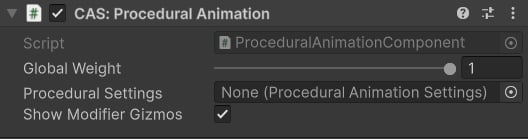
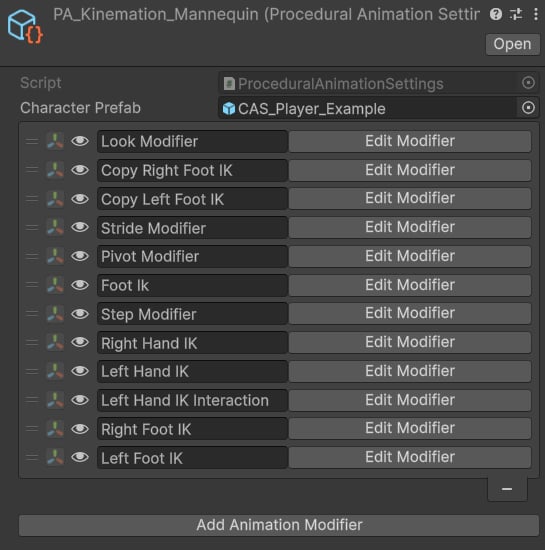
Modifiers.
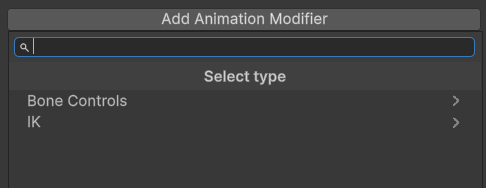
Selecting a modifier.
Runtime API
CharacterAnimationComponent normally keeps the procedural graph up to date. Use this API when your own gameplay code needs to change the active modifier setup or refresh a modifier after changing its settings.
Switch procedural settings
ProceduralAnimationSettings asset when the character needs a different set of modifiers. It rebuilds the modifier chain from the new list.
EquipWeapon replaces the active procedural setup with the modifiers in armedSettings.
Refresh a modifier
UpdateAnimationModifier. CAS forwards it to every active job with the same settings type. For example, updating a FootIkSettings instance refreshes all active Foot IK jobs.
Use QueueModifierUpdates when several settings change together. CAS waits until LateUpdate, then refreshes the queued modifiers in one pass.
Inspect a running job
T. Built-in jobs are structs, so the result is a copy. It is useful for checking state, but changing the returned value will not change the running job.
Playable lifecycle
CharacterAnimationComponent calls them as part of its normal update loop, so your gameplay scripts do not need to call them.
Procedural Animation Settings API
characterPrefab gives modifiers their skeleton context. modifiers is the ordered list CAS turns into the procedural chain. GetHierarchy returns that character’s skeleton hierarchy, or null if the prefab or its CharacterSkeleton component is missing.