Features
- First- and third-person views — toggle freely between perspectives at runtime.
- Camera stabilization — first-person mode dampens the camera against skeleton movement to reduce swimming artifacts.
- Camera shakes — procedural fire-and-forget shakes driven by random ranges on each axis.
- Smooth FOV updates — interpolated field-of-view changes for aiming, sprinting, and other states.
Input Properties
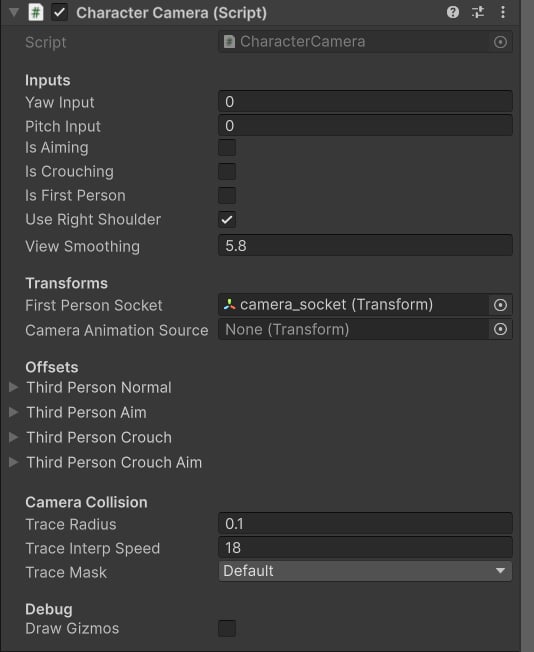
These properties feed the camera with gameplay data each frame. Set them from your character controller script.float
Horizontal rotation input — typically mapped to the horizontal mouse axis or right analog stick X. Drives left–right camera rotation.
float
Vertical rotation input — typically mapped to the vertical mouse axis or right analog stick Y. Drives up–down camera rotation.
bool
Set to
true when the player is aiming. The camera uses this value to select the correct Offset struct (aiming offsets) and can also trigger FOV changes.bool
Set to
true when the player is crouching. The camera reads this to apply the crouch-specific Offset values, lowering the camera to match the crouched stance.bool
Defines the active view mode. When
true, the camera follows the First Person Socket transform and stabilization is active. When false, the camera uses the third-person offset configuration.bool
Determines the shoulder anchor in third-person mode. Set to
true for a right-shoulder view and false for a left-shoulder view. Toggle this at runtime to let players switch sides.float
The interpolation speed used when smoothing camera rotation. Higher values produce snappier, more responsive camera movement; lower values create a floating, cinematic feel.
Transform Properties
Transform
The transform that the camera follows when Is First Person is
true. Assign the head bone, a dedicated camera socket bone, or any child transform positioned at eye level on your character. If this is left unassigned, the camera will default to the world origin, placing it at the character’s feet. See Camera appears at the character’s feet for the fix.Transform
An animated transform whose motion is applied to the camera for procedural sway and weapon-bob effects. This is typically a bone or an empty GameObject that is driven by the animation system to add life to the camera in both first- and third-person modes.
Offset Properties
Camera offsets are grouped into structs, one per gameplay situation. Each struct has two fields:Vector3
Position offset applied relative to the Pivot point. Use this to nudge the camera forward, backward, or vertically within a given scenario.
Vector3
The pivot point offset relative to the player transform’s origin. Adjusting the pivot shifts where the camera orbits in third-person mode, or where it anchors in first-person mode.
Camera Collision
The collision system traces a sphere from the player toward the camera each frame and pulls the camera forward if the trace hits an obstacle, preventing it from clipping into walls and geometry.float
The radius of the sphere used for the collision trace. Increase this value if the camera clips through thin walls or narrow geometry; decrease it for tighter offset behavior near obstacles.
float
The speed at which the camera smoothly adjusts its distance when collision is detected or cleared. Higher values make the camera snap quickly to the safe position; lower values produce a gradual glide.
LayerMask
The physics layers included in the collision trace. Assign the layers that represent solid world geometry (walls, floors, props). Exclude layers such as characters, triggers, and water to prevent unintended collision responses.
FOV API
Call the following method to update the camera’s target field of view at runtime. The camera interpolates smoothly from the current FOV to the target value each frame:SetTargetFOV in response to the aiming input:
Camera Shakes
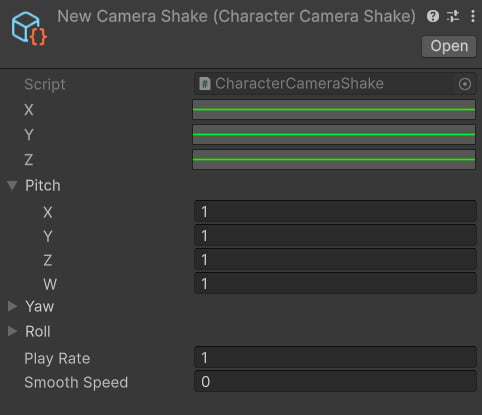
Camera shakes are fire-and-forget procedural motions that add impact feedback for events such as weapon recoil, explosions, or landing. Each shake asset defines the motion range per axis and how quickly it decays.Shake Asset Properties
Vector4
Pitch/Yaw/Roll ranges for motion around the X axis. The shake system picks a random value between
Mathf.Random(range.x, range.y) for the outgoing swing and Mathf.Random(range.z, range.w) for the return swing.Vector4
Pitch/Yaw/Roll ranges for motion around the Y axis, using the same four-component range format as X.
Vector4
Pitch/Yaw/Roll ranges for motion around the Z axis, using the same four-component range format as X.
Vector4
Per-axis angular range values. The
x and y components define the minimum and maximum of the forward swing; the z and w components define the minimum and maximum of the return swing.float
Playback speed multiplier for the shake. Values above
1.0 produce a faster, snappier shake; values below 1.0 produce a slower, heavier feel.float
The interpolation speed used when blending the shake motion. Higher values give the shake a sharper, more immediate onset; lower values create a rolling, sustained feel.
Playing a Shake from Code
CallPlayCameraShake on your CharacterCamera reference to trigger a shake asset at runtime:
Camera shakes are fully additive — you can call
PlayCameraShake multiple times in quick succession (for example, on automatic fire) and the shakes will stack and blend together naturally.