
Overview
CharacterExampleController is a demo script included with the CAS demo. It handles character movement, item actions, and interactions. The component is added directly to the player prefab alongside the Character Controller and Player Input components.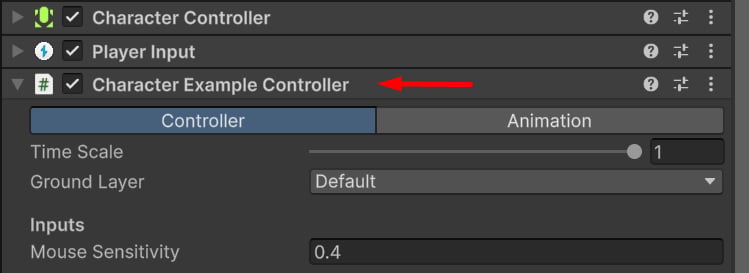
Character Example Controller.
How it works
This component works out of the box in the demo and does not require additional setup. The update cycle is structured as follows:Initialization
When the game starts, the example controller searches forCasProp components in the character hierarchy. These represent items such as a torch, axe, or barrel. The first item found is equipped automatically.
The controller assumes that items are added directly to the character hierarchy, for example, parented to the character’s right hand.
CharacterExampleController.cs
Update
At runtime, the controller processes character velocity, rotation, and movement based on the current input values. The order of operations is as follows:CharacterExampleController.cs
UpdateAnimatorParameters() updates the following Animator parameters:
- MoveX and MoveY (float) — normalized player movement input.
-
ViewWeight (float) — normalized perspective weight.
0is first-person, and1is third-person. - IsFirstPerson (bool) — whether the player is in first-person or third-person mode.
-
Gait (float) — current movement state.
0is idle,1is walking,2is jogging, and3is sprinting. - Crouch (bool) — whether the character is crouching or standing.
- IsMoving (bool) — whether the character is moving.
- Jumped (trigger) — triggered when the player jumps.
- IsInAir (bool) — whether the player is falling.
-
AimingWeight (float) — smooth, normalized aiming alpha in the
[0; 1]range. - IsTraversing (bool) — whether the character is playing a traversal action, such as climbing or vaulting.
Input Action Callbacks
The example controller implements the following input callbacks by default:CharacterExampleController.cs
Component Settings
Character Example Controller properties are split into two tabs: Controller and Animation.
Controller Properties
General controller settings.
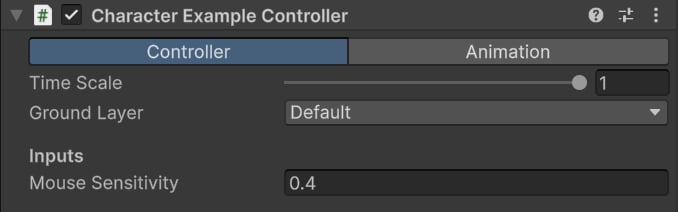
- Time Scale — current time scale value.
- Ground Layer — surfaces considered walkable by the controller.
- Mouse Sensitivity — vertical and horizontal mouse input multiplier.
Movement Gaits
Controls the main movement states.
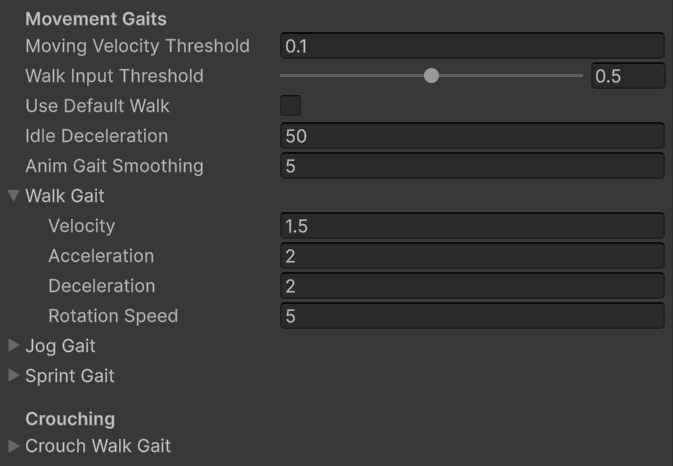
- Moving Velocity Threshold — if exceeded, the controller is considered moving.
- Walk Input Threshold — minimum movement input required to start moving.
- Use Default Walk — whether the walking gait should be used by default.
- Idle Deceleration — how quickly velocity decays to zero while idle.
- Anim Gait Smoothing — gait interpolation speed for Animator parameters.
Walk / Jog / Sprint / Crouch Gait
Movement settings for each movement state.
- Velocity — target velocity in meters per second.
- Acceleration — how quickly velocity increases.
- Deceleration — how quickly velocity decreases.
- Rotation Speed — angular interpolation speed for this gait.
In Air
Controls in-air movement.
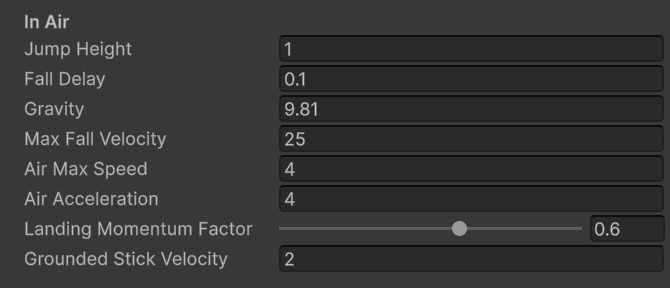
- Jump Height — how high, in meters, the character should jump.
- Fall Delay — delay, in seconds, before the character is considered falling.
- Gravity — constant downward force.
- Max Fall Velocity — maximum allowed falling velocity.
- Air Max Speed — maximum allowed movement speed while in air.
- Air Acceleration — movement acceleration while in air.
- Landing Momentum Factor — slows down player movement after landing.
- Grounded Stick Velocity — vertical velocity below this value is not considered falling, and the character will snap to the ground. Use this for uneven terrain and rough surfaces to avoid false in-air triggers.
Grounding Stability
Controls grounded movement on uneven surfaces.
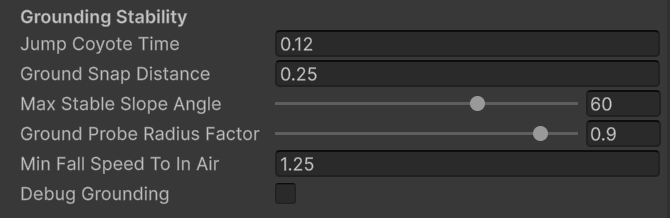
- Jump Coyote Time — delay, in seconds, during which the character can still jump after leaving the ground.
- Ground Snap Distance — maximum allowed distance to the ground before the character leaves the grounded state.
- Max Stable Slope Angle — if the surface angle exceeds this value, the character will not snap to it.
- Ground Probe Radius Factor — multiplier for capsule collision checks.
- Min Fall Speed To In Air — minimum required vertical speed to enter the in-air state.
- Debug Grounded — toggles Gizmo collision checks.
Rotation
Controls player rotation.
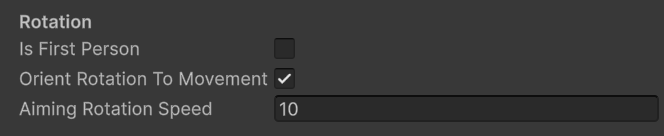
- Is First Person — toggles first-person mode. When enabled, controller rotation always follows the input direction.
- Orient Rotation To Movement — orients controller rotation to velocity. Only used in third-person mode.
- Aiming Rotation Speed — angular interpolation speed while aiming or in first-person mode.
Animation Properties
Controls general animation behavior.
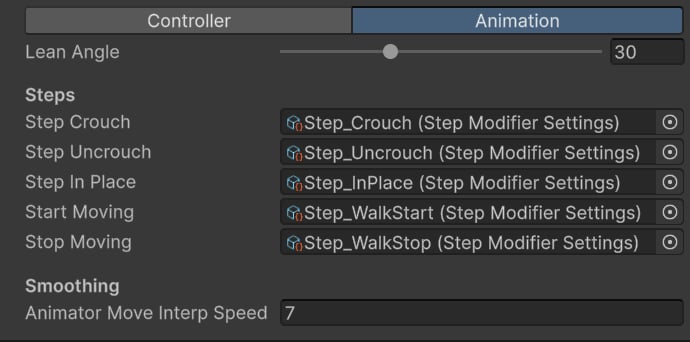
- Lean Angle — leaning angle in degrees.
- Step Crouch — Step Modifier played when crouching.
- Step Uncrouch — Step Modifier played when standing up.
- Step In Place — Step Modifier played when swapping items.
- Start Moving — Step Modifier played when starting movement.
- Stop Moving — Step Modifier played when stopping movement.
- Animator Move Interp Speed — interpolation speed for movement direction.
Tip: Step Modifier is used to create a procedural transition and reduce foot sliding.