FPS Animation Pack Integration
The FPS Animation Pack × CAS integration combines the FPS Animation Ultimate asset with the CAS runtime. You get 20 ready-made weapons with idle, fire, reload, ADS, and inspect animations — plus camera shake assets for recoil — all configured to slot directly into CAS settings and prefabs.Installation
Follow all four steps in order. Skipping or reordering them will cause missing script references or import errors.1
Import CAS including demo content
Import the Character Animation System package from the Unity Asset Store into your project. When prompted, also import the CAS demo content package so that all base prefabs, settings, and scripts are present before you add the integration layer.
2
Import FPS Addon including FPS demo content
Import the FPS Addon package. Again, include the FPS demo content so that the shared input assets and prefab dependencies resolve correctly.
3
Import FPS Animation Ultimate (FPSAnimationPack folder only)
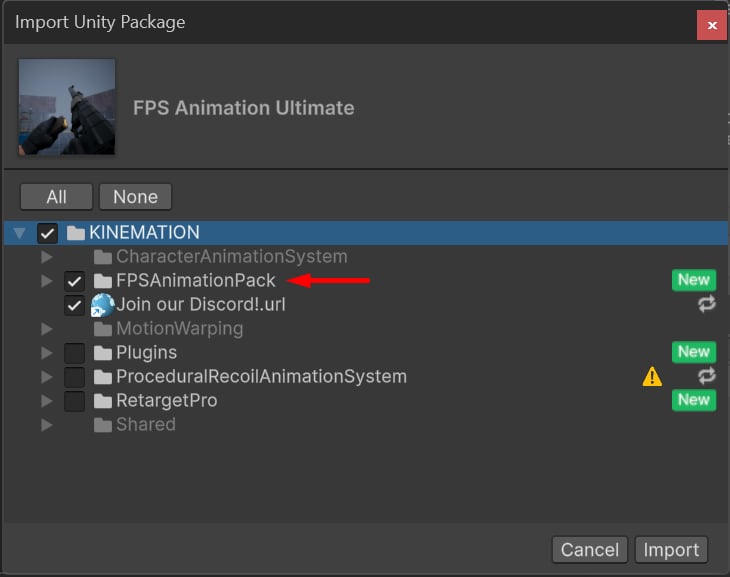
Import the FPS Animation Ultimate asset from the Asset Store. In the import dialog, select only the
FPSAnimationPack folder and click Import. Do not import the root-level demo scenes or example scripts from this package, as they are not compatible with the CAS integration layer.4
Import the integration package
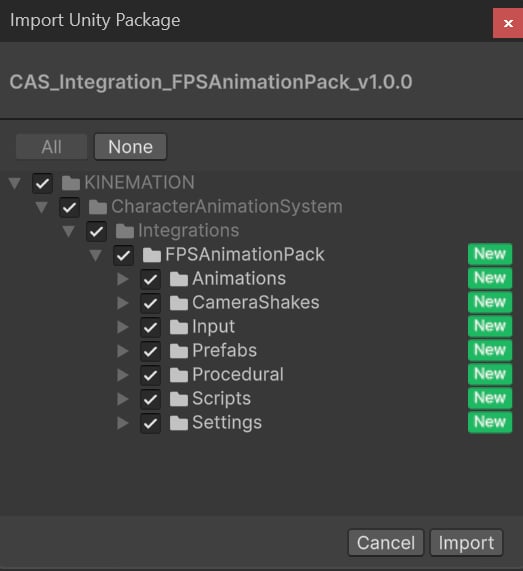
Download the latest version of the FPS Animation Pack × CAS integration package from Discord and import it into your project. Click Import to accept all assets in the package.
Built-In / HDRP Upgrade
All materials in the FPS Animation Pack are set up for URP by default. If your project targets Built-in or HDRP, upgrade the materials before entering Play Mode:- Navigate to
KINEMATION/FPSAnimationPack/RenderPipelineUpgradesin the Project window. - Select the upgrade package matching your render pipeline (
BuiltIn_UpgradeorHDRP_Upgrade). - Double-click the package to apply the material upgrades.
Content Structure
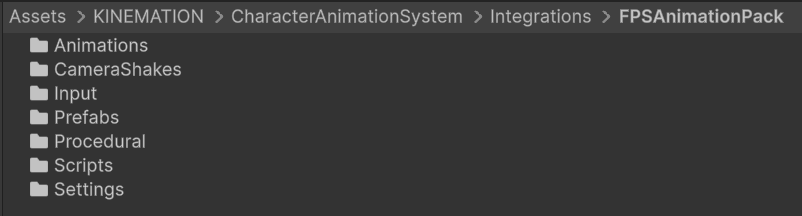
After installation, the integration content lives underKINEMATION/FPSAnimationPack/. The folder is organized as follows:
Animations
Animation Assets for all character and weapon clips, along with custom Avatar Masks and Animator Controllers. Each weapon has a dedicated subfolder containing its idle, fire, reload, ADS, inspect, and equip clips.
Camera Shakes
CameraShake assets for every weapon’s recoil pattern. Assign these to the Character Camera component’s
PlayCameraShake call in your weapon fire logic.Input
The
CAS_FPSAnimationPack Input Actions asset, which defines the main gameplay inputs: move, look, reload, fire, ADS, and more. Wire this to a Player Input component on your character.Prefabs
Game-ready player and individual weapon prefabs. Each weapon prefab has its CAS Settings, IK targets, and animation references pre-configured. Drop them into the character hierarchy to use immediately.
Procedural
Procedural Animation Settings assets for features like aim-down-sights offset, weapon sway, and breathing motion. Each asset is pre-tuned to match the included weapon animations.
Scripts
Custom MonoBehaviours that connect the FPS Animation Pack weapons to the CAS runtime — including item equip/unequip logic, fire event dispatching, and camera shake triggers.
Character Skeleton API
The Character Skeleton component stores the full bone hierarchy of your character and provides runtime access to individual transforms and rig elements. Custom tools, editor extensions, and integration scripts use this API to resolve bones by name or index without needing a direct Inspector reference.CharacterSkeleton is added to the root bone GameObject (typically named Root, Armature, or Skeleton) by the CAS setup wizard.
Updating the Skeleton
When you modify a character’s bone hierarchy, click the Update Skeleton button on theCharacterSkeleton component and then apply the changes to the prefab. This rebuilds the internal bone list to reflect the new structure.
Key API Methods
KRigElement
KRigElement is a lightweight struct used throughout the CAS editor and runtime to refer to bones without holding a direct Transform reference:
Example: Resolving a Bone at Runtime
GetBoneTransform performs a name lookup on the flat skeleton list. Cache the result if you call it every frame to avoid repeated string searches.