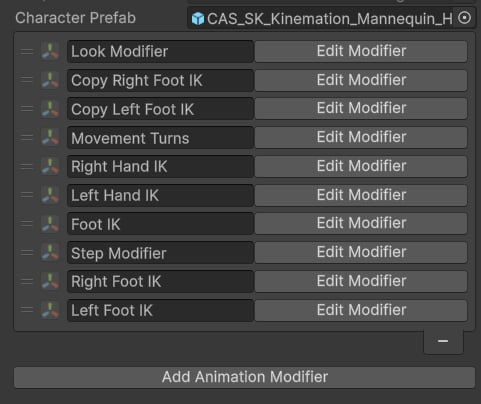
After the preset wizard runs, CAS has already wired a full procedural animation stack to your character. You do not need to build it from scratch — the wizard generates a Procedural Animation Settings ScriptableObject and adds IK target GameObjects to the hierarchy. This page explains what was created, why the pieces are arranged the way they are, and how to connect your own gameplay values to the system.

The Procedural Animation Settings Asset

Open the PA_<SkeletonName> ScriptableObject in the Project window. It contains two key fields:
  • Character Prefab — a reference to your root player prefab. Procedural modifiers use this to locate your gameplay components at runtime via Property Bindings.
  • Modifier List — an ordered list of animation modifiers. Each entry describes one piece of procedural behaviour: copying a bone position, running foot IK, applying a step offset, adding weapon sway, and so on.
The modifier list is displayed using the ScriptableWidget editor, which lets you inspect, reorder, and configure each modifier in the Inspector without needing to write a custom editor.
The order of modifiers in the list is the order they execute every frame. Getting this wrong — especially for IK modifiers — produces incorrect results. Follow the Copy → Procedural → IK pattern described below.

Modifier Order: Copy → Procedural → IK

CAS uses an efficient three-stage pattern for all IK-based features:
1

Copy Bone

Copy Bone modifiers read the current animated position and rotation of a real skeleton bone (such as the left foot or right hand) and write those values into a matching IK target GameObject. This snapshot is taken after the Animator and Layered Blending pipeline have run, so the IK target starts from the correct animated position.
2

Apply Procedural Features

Modifiers such as Foot IK, Step Modifier, Recoil, and Sway operate on the IK target GameObjects. Because they read from and write to the IK targets — not the actual bones — you can chain multiple modifiers without running an expensive IK solve for each one.
3

Apply IK

IK modifiers read the final IK target positions and rotations and solve the actual skeleton bones (legs, arms) to reach those targets. The IK solve runs once per limb, at the end of the modifier stack for that limb.
This approach is efficient: a single IK solve per limb absorbs all procedural adjustments accumulated in the earlier stages, keeping CPU cost predictable regardless of how many procedural modifiers you stack.

IK GameObjects in the Hierarchy

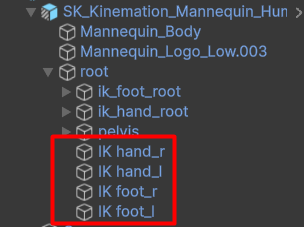
After preset setup, several empty GameObjects appear at the root of your character hierarchy. The leg targets are: These GameObjects are the intermediaries in the Copy → Procedural → IK pipeline. The Copy Bone modifier moves them to match the animated skeleton each frame; subsequent modifiers adjust them; the IK solver bends the limb to reach them.
You can visualise the IK targets during Play Mode by selecting them in the Hierarchy. Their Gizmos show you exactly where each limb is being driven, which is useful for debugging foot placement on uneven terrain.

Animation Modifiers Reference

To learn the purpose, parameters, and best practices for each built-in modifier — including Foot IK, Step Modifier, Look IK, Sway, and Recoil — see the Animation Modifiers reference page.

Property Bindings

CAS links your gameplay values to the animation system using Property Bindings — an editor-time system that lets you map a field on any component (velocity, aim angle, grounded state, and so on) to a named parameter in the procedural modifier stack without writing binding code. To set up a binding:
  1. Open the Procedural Animation Settings asset.
  2. Select the modifier that needs a gameplay value (for example, a Sway modifier that needs movement speed).
  3. In the modifier’s inspector, click the binding icon next to the parameter field.
  4. In the Property Binding picker, select the component and field you want to drive the parameter.
At runtime, CAS reads the bound field automatically each frame and passes it to the modifier. If you need values that are not simple component fields — derived values, computed properties — you can implement the IPropertyProvider interface in a MonoBehaviour on your player prefab and expose custom named properties. For a full guide to the binding system, see Property Bindings.