The Look Modifier applies pitch, yaw, and roll rotation to a configurable list of spine bones without requiring Blend Tree states. You bind the player’s aim direction directly to the modifier’s input properties, and the system distributes the resulting rotation evenly across all registered bones. A built-in turn-in-place feature then rotates the character’s root bone against the player’s look direction so the feet stay planted until the angular threshold is exceeded.

Look Rotation Properties

float property binding
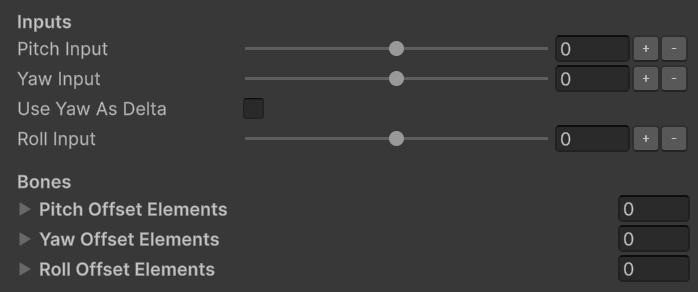
The vertical look angle in degrees. Bind this to your camera’s pitch or the player’s vertical aim input.
float property binding
The horizontal look angle in degrees. By default this is interpreted as a world rotation value — you can bind the player’s global yaw directly. Enable Use Yaw As Delta if you want to accumulate frame-by-frame input instead.
bool
default:"false"
When enabled, the modifier accumulates the Yaw Input value each frame as a delta rather than using it as an absolute world rotation. Enable this when your input source provides per-frame horizontal deltas (e.g., mouse delta X) instead of a global angle.
float property binding
The roll or leaning angle in degrees. Use this to tilt the spine sideways — for example, when strafing or banking in a vehicle.
KRigElement[]
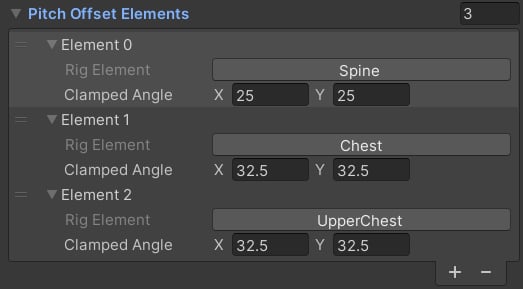
Bones that receive the pitch rotation. Add spine and neck bones here. The total pitch angle is divided evenly across all bones in the list.
KRigElement[]
Bones that receive the yaw rotation. Typically the same spine/neck bones as Pitch Offset Elements. The total yaw angle is distributed evenly.
KRigElement[]
Bones that receive the roll rotation. Use a subset of spine bones for subtle leaning effects.

Turn-In-Place Properties

bool
default:"false"
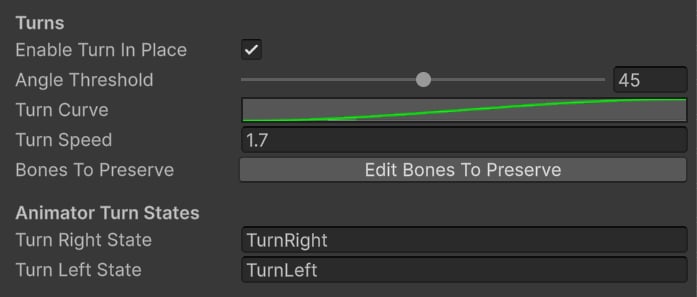
Activates the procedural turn-in-place system. When enabled, the modifier rotates the root bone against the player’s yaw to keep the feet stationary while the upper body looks around.
float
The maximum allowed yaw offset (in degrees) between the character’s root and the player’s look direction before a turn-in-place is triggered. Recommended range: 45–90 degrees.
AnimationCurve
An ease curve that shapes the speed of the turn over time. Use an ease-in/ease-out curve for a natural, accelerate-then-decelerate feel.
float
A multiplier applied on top of the Turn Curve to control the overall turning speed.
KRigElement[]
Bones whose poses are preserved regardless of the root rotation. Used with Humanoid rigs only — typically the upper spine or head when you want the upper body to remain facing the look direction during a turn.
string
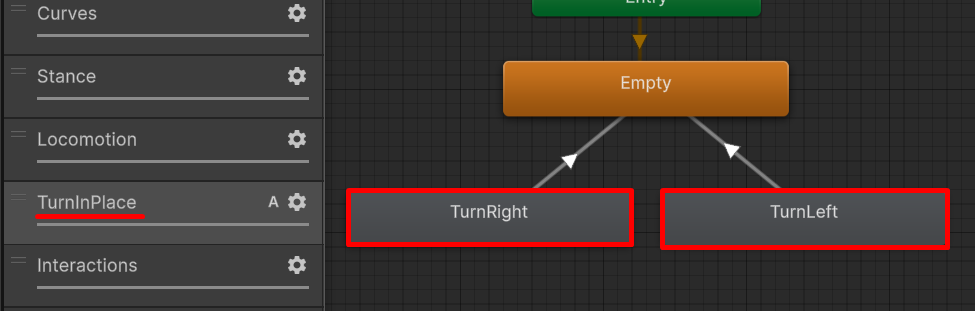
The name of the Animator Controller state to play when the character turns right. Add a turning animation to your controller and enter its state name here.
string
The name of the Animator Controller state to play when the character turns left.

Driving Look Rotation at Runtime

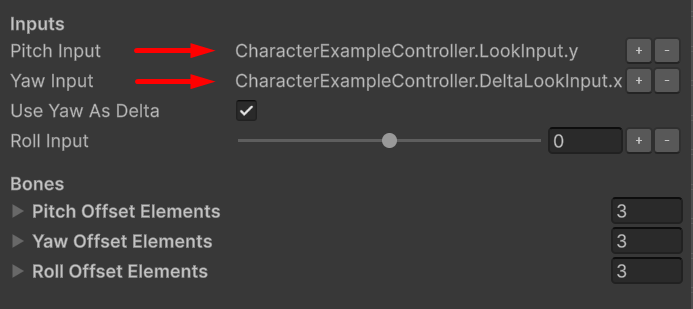
The Look Modifier’s input properties (Pitch Input, Yaw Input, Roll Input) are designed to be driven via CAS Property Bindings. You connect a float value from your character controller or camera directly to each input property, and the modifier reads it on the animation thread each frame.

Using a Global Rotation Value

If your character controller exposes a global yaw angle, bind it directly to Yaw Input. This is the most reliable approach and makes look-smoothing straightforward — you interpolate toward the global target angle before feeding it to the modifier.

Using Per-Frame Input Deltas

If your input system provides per-frame horizontal deltas (for example, mouse delta X or joystick input), enable Use Yaw As Delta and bind the horizontal delta value to Yaw Input. The modifier accumulates these deltas each frame to produce a continuous rotation.
Using a global rotation value gives more control than delta input — for example, it lets you apply look-smoothing by interpolating toward the global target angle. Delta-mode is simpler to set up initially but harder to smooth precisely.

Angle Distribution

Look angles are divided evenly across all registered bones. You only need to specify the total desired angle — the modifier computes each bone’s share automatically. For example, if you want the character to look 90° to the right and you have three spine bones registered, each bone receives 30° of yaw.
Just enter the total target angle and the system distributes it automatically. Experiment with which spine bones to include to find what feels natural for your specific character mesh.

Turn-In-Place Setup

1

Enable the feature

Check Enable Turn In Place in the Look Modifier settings.
2

Set the angle threshold

Start with 60 degrees for Angle Threshold — this gives the character a comfortable look-around range before triggering a turn.
3

Add turn animations to your controller

Create Turn Right and Turn Left states in your Animator Controller and add looping or one-shot turning animations to them.
4

Reference the state names

Enter the exact Animator Controller state names in Turn Right State and Turn Left State.
5

Tune speed and curve

Adjust Turn Speed and Turn Curve until the turn feels responsive without being jarring.