
Overview
Stride Modifier dynamically adjusts legs and pelvis motion to match the player trajectory and velocity.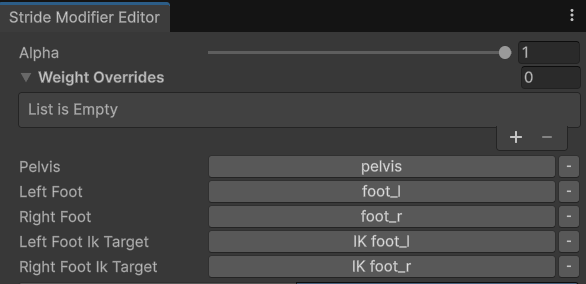
Bone references.
- Option
- Option
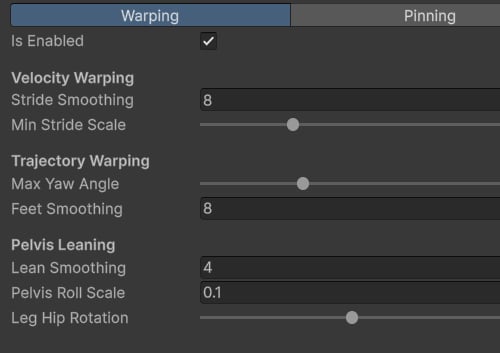
Warping settings.
Bone References
- Pelvis — pelvis bone reference.
- Left Foot — left foot bone reference.
- Right Foot — right foot bone reference.
-
Left Foot IK Target — left foot IK target reference. This can be a special IK bone or CAS-generated
IK foot_l. -
Right Foot IK Target — right foot IK target reference. This can be a special IK bone or CAS-generated
IK foot_r.
Warping Settings
The Warping feature adjusts leg rotation to align with the movement trajectory and scales stride length based on the player’s velocity.- Is Enabled — turns the warping feature on or off.
- Stride Smoothing — controls how quickly the stride scale interpolates to its target value.
- Min Stride Scale — sets the minimum allowed stride length ratio.
- Max Yaw Angle — defines the maximum allowed yaw rotation angle.
- Feet Smoothing — controls how quickly the feet rotate to align with the trajectory.
- Lean Smoothing — controls the interpolation speed of the pelvis lean.
- Pelvis Roll Scale — sets the intensity of the pelvis roll rotation.
- Leg Hip Rotation — sets the intensity of the leg rotation toward the trajectory.
Pinning
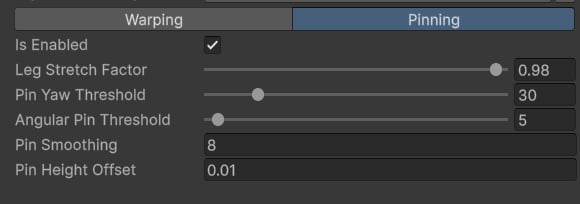
The Pinning feature locks the feet in world space when they make contact with the surface, helping reduce foot sliding.- Is Enabled — enables or disables the pinning feature.
- Leg Stretch Factor — defines the maximum allowed leg stretch.
- Pin Yaw Threshold — if this angle is exceeded, the feet become unpinned.
- Angular Pin Threshold — if the foot pitch angle is below this threshold, the foot may become pinned.
- Pin Smoothing — controls how quickly the foot interpolates when pinning or unpinning.
- Pin Height Offset — controls the height range at which a foot can be pinned.
Use-cases
The Stride Modifier is generally used to create a more realistic character motion and reduce foot sliding. To use it in your project, first add a Character Trajectory component to the character model.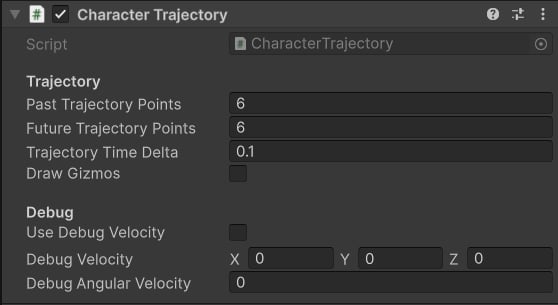
Trajectory component.
- Past Trajectory Points — number of past trajectory points.
- Future Trajectory Points — number of future trajectory points.
- Trajectory Time Delta — time step in seconds between each trajectory point.
- Draw Gizmos — toggles trajectory gizmos.
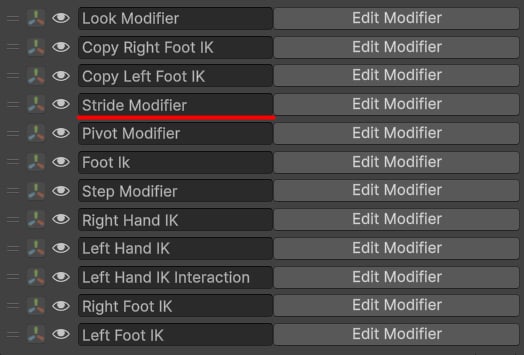
Stride Modifier.
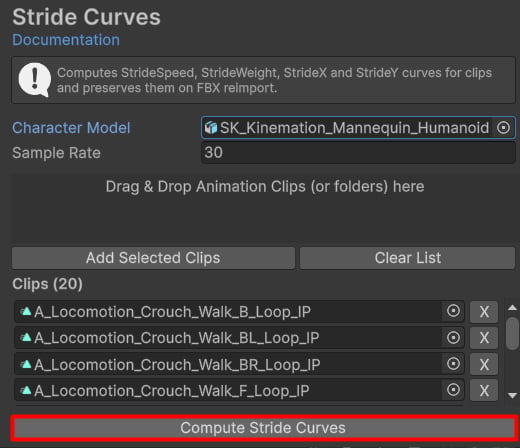
Stride Curves tool.
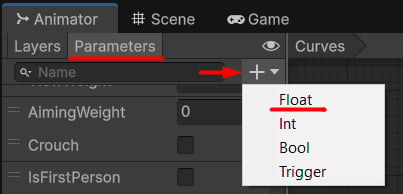
How to add a float parameter.
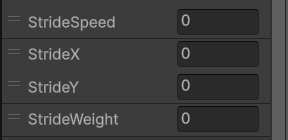
Add these parameters.